|

|
D01467920B
|
|

|
Owner's Manual
V1.00
|

|
The following items are necessary to record and play files with this unit.
Please purchase them separately for your use.
 A microSD card A microSD card
3 AA batteries
A list of microSD cards that have been confirmed for use with this unit can be found on the TASCAM website.
https://tascam.jp/int/product/dr-40xp/docs
This Owner’s Manual can also be downloaded from the TASCAM website at the above address.
|
Thank you very much for purchasing the TASCAM DR-40XP.
Before using this unit, read this Owner's Manual carefully so that you will be able to use it correctly and enjoy working with it for many years.
1-1.Conventions used in this manual
We use the following conventions in this manual.
“microSD/microSDHC/microSDXC memory card” is sometimes abbreviated as “microSD card”.
WAV files that support BWF are called “BWF” files while WAV files that do not support BWF are called “WAV” files.
Words that appear on the display of a computer or iOS device are shown in quotation marks like “DR-40XP”.
As necessary, additional information is provided under TIP, NOTE, ATTENTION and CAUTION headings.
TIP
These are tips about how to use the unit.
NOTE
These provide additional explanations and describe special cases.
ATTENTION
Failure to follow these instructions could result in damage to equipment or lost data, for example.
 CAUTION
Failure to follow these instructions could result in injury.
|
Information is given about products in this manual only for the purpose of example and does not indicate any guarantees against infringements of third-party intellectual property rights and other rights related to them. TEAC Corporation will bear no responsibility for infringements on third-party intellectual property rights or their occurrence because of the use of these products.
|
|
Properties copyrighted by third parties cannot be used for any purpose other than personal enjoyment and the like without the permission of the right holders recognized by copyright law. Always use this equipment properly. TEAC Corporation will bear no responsibility for rights infringements committed by users of this product.
|
1-2.Features
Compact audio recorder that uses microSD cards (sold separately) as recording media
High-performance directional stereo mics can be adjusted, enabling both A-B and X-Y recording
Can record with different types of stereo sound depending on the angle of the microphones
Closed: clear stereo sound with less phase difference
Open: wide stereo sound
Mid-side decoding function can be used with mid-side mics
Recording of up to four channels simultaneously possible
Recording possible in 44.1/48/96kHz, 32-bit float as well as 16-bit/24-bit linear PCM (WAV) formats
Compatible with BWF format
32–320 kbps MP3 format recording possible (compatible with v2.4 ID3 tags)
Overdub recording function includes 2 recording modes: mix mode that layers new sound on the sound playing back and separate mode that records to a different channel
Built-in playback monitor speaker with 0.3W mono output
Built-in effect (reverb) can be used during recording and playback
Automatic recording function that starts recording when the set audio input level is detected
Tone output function, equivalent to a clapper-board, convenient for synchronizing with video files when editing
A QUICK button is available for easy access to various functions
Track incrementing function allows a recording to be split by creating a new file when desired
Pre-recording (PRE REC) function allows the unit to record the 2 seconds of sound before recording is activated
Automatic peak reduction function automatically reduces the level suitably when the input level is too high
Automatic level adjustment function enables always recording at suitable levels by lowering loud sounds and raising quiet sounds
Limiter function automatically reduces the level suitably in particular portions where the input level is too high
Low cut filter conveniently reduces low-frequency noise
VSA function can change playback speed in a range from 50-200% (0.5 to 2.0 in 0.1 increments) of normal without changing pitch
Repeat playback and in-out loop playback functions
PB CONT  (PLAYBACK CONTROL) button opens screen for playback speed and in-out loop settings
Tuner function to tune musical instruments
Self-timer function can start recording after a set period of time
Jump function can move backward or forward a small amount during playback or when paused
Input delay function convenient when recording with multiple mics
Playlist function
MARK function convenient for moving to specific locations
DIVIDE function allows files to be split where desired (only for WAV files)
Playback equalizer function
File name format can be set to use a user-defined word or the date
USB audio interface function
3.5 mm (1/8”) line/headphones output jack
128×64-pixel LCD with backlight
USB Type-C port
Operates on 3 AA batteries, an AC adapter (TASCAM PS-P520U sold separately) or USB bus power (USB cable sold separately)
Tripod attachment screw hole
Two balanced mic/line inputs (XLR/TRS combo jacks)
Overwrite recording function
1-3.Included items
This product includes the following items.
Take care when opening the package to avoid damaging the items. Keep the box and packing materials for transportation in the future.
Please contact the store where you purchased this unit if any of the included items are missing or are confirmed to have been damaged during transportation.
Main unit × 1
Safety Guide (with warranty) × 1
TASCAM ID registration guide × 1
1-4.Accessories sold separately
This product does not include the following items.
Please purchase any that you need for your uses.
A microSD card
(Using microSD cards)
3 AA batteries
(Batteries)
AC adapter (TASCAM PS-P520U)
(Using an AC adapter)
USB cables (for communication or data transfer)
(USB cables)
Using microSD cards
This unit uses microSD cards for recording and playback.
A list of microSD cards that have been confirmed for use with this unit can be found on the TASCAM website. You can also contact TASCAM customer support.
Formatting of microSD cards
microSD cards formatted by this unit are optimized to improve performance during recording. For this reason, always use this unit to format microSD cards before use with it.
Precautions for use
microSD cards are delicate media.
In order to avoid damaging microSD cards, take the following precautions when handling them.
Do not leave them in extremely hot or cold places.
Do not leave them in extremely humid places.
Do not let them get wet.
Do not put things on top of them or twist them.
Do not hit them.
Do not remove or insert them during recording, playback, data transmission or other access.
Always put memory cards in cases when transporting them.
|
In case of the failure of the Product caused by the tapes or other media (“Media”) you used, the repair for the failure shall not be covered by the warranty of the Product and must be done at your own expense.
It is highly recommended that you shall avoid using the Media such as those not used for years or used after a long period of use or those with mold, blots, stickiness, folds, creases or twists.
TEAC shall never be responsible for any damages due to the Media including but not limited to the corruption or breakage of the Product or the Media, dragging the tapes into the Product, and/or loss of data in whole or in part that arises out of or related to the use of the Media. That is the same for any damages such as lost profit, indirect or consequential damages, and/or special damages.
It is highly recommended that you shall take appropriate measures to prepare for the unexpected loss of data along with the Copyright Act of your country or region.
|
Batteries
To power this unit with batteries, prepare three batteries.
Alkaline, Ni-MH or lithium AA batteries can be used.
Using an AC adapter
To use AC power supply, prepare a TASCAM PS-P520U AC adapter (sold separately).
NOTE
This unit does not have a battery charging function when using an AC adapter.
USB cables
A commercially-available USB cable must be prepared to connect this unit to a computer (Windows/Mac) or an iOS device. (We recommend a product that is USB-IF certified.)
This unit has a USB Type-C port. Prepare a USB cable (designed for communication or data transmission) that matches the USB port of the computer or iOS device being used.
NOTE
USB cables designed only for charging cannot be used.
Connecting to an iOS device with a lightning port
A genuine Apple Lightning to USB Camera Adapter and a commercially-available Type-A to Type-C cable are necessary.
Connecting to a computer or iOS device with a USB Type-C port
A commercially-available Type-C to Type-C cable is necessary.
Connecting to a computer with a USB Type-A port
A commercially-available Type-A to Type-C cable is necessary.
1-5.Beware of condensation
Condensation could occur if the unit is moved from a cold place to a warm place, it is used immediately after a cold room has been heated or it is otherwise exposed to a sudden temperature change.
To prevent this, or if this occurs, let the unit sit for one or two hours at the new room temperature before using it.
1-6.Cleaning the unit
Use a dry soft cloth to wipe the unit clean. Do not wipe with chemical cleaning cloths, thinner, alcohol or other chemical agents. Doing so could damage the surface or cause discoloration.
1-7.About TASCAM customer support service
TASCAM products are supported and warrantied only in their country/region of purchase.
To receive support after purchase, on the TASCAM Distributors list page of the TEAC Global Site, search for the local company or representative for the region where you purchased the product and contact that organization.
https://teac-global.com/
When making inquiries, the address (URL) of the shop or web shop where it was purchased and the purchase date are required. Moreover, the warranty card and proof of purchase might also be necessary
This section explains using batteries to power the unit and the basic steps from recording to playback using the default settings (the state when shipped from the factory).
2-1.Preparation
Inserting microSD cards (sold separately)
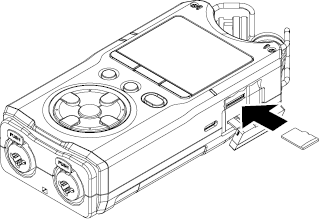
Open the card slot cover on the right side and insert a microSD card.
NOTE
A list of microSD cards that have been confirmed for use with this unit can be found on the TASCAM website.
Installing batteries (sold separately)
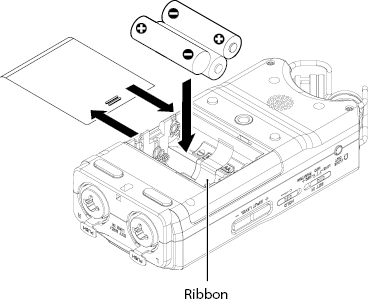
Install 3 AA batteries in the battery compartment on the back of the unit.
Slide open the battery compartment cover to remove it.
NOTE
Use batteries with sufficient charge.
See "4-1. Preparing the power supply" for information about using an AC adapter or USB bus power.
Starting up the unit
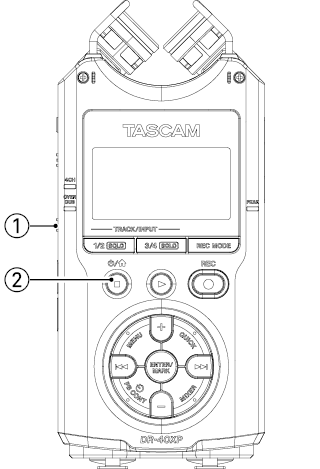
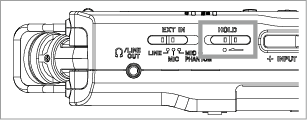
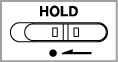
 Confirm that the HOLD switch on the left side is off (in the direction opposite the arrow).
|
|
|
|
HOLD off
|
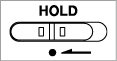
HOLD on
|
NOTE
No buttons can be used when HOLD is on. Turning the unit on and off is also not be possible.
 Press and hold the
  [
[ ] button until the TASCAM DR-40XP start-up screen appears on the display.
|
|
|
Startup Screen
|
Making initial settings
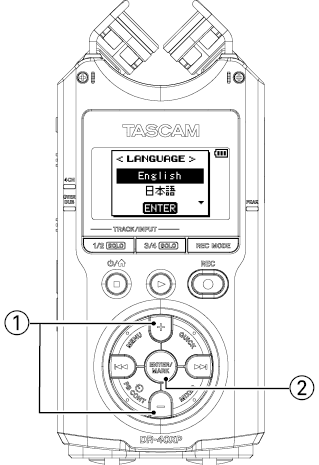
Setting the language
Use the + and − buttons to select the language.
Press the ENTER/MARK button to confirm.
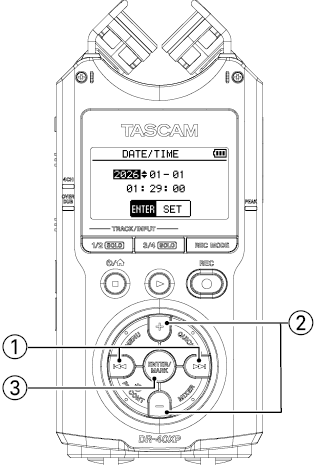
Setting the date and time
Use the  and
and  buttons to move the cursor.
Use the + and − buttons to change values.
 Press the ENTER/MARK button to confirm.
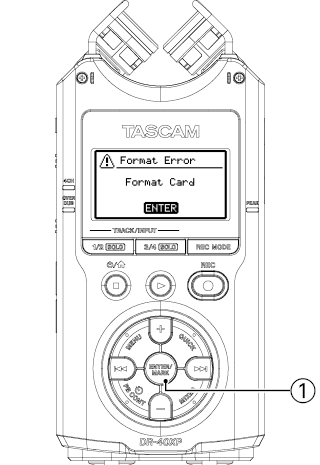
Formatting microSD cards
Check the microSD card to format and press the ENTER/MARK button to confirm.
Formatting of the microSD card will start.
|
ATTENTION
Formatting a microSD card erases all the data on it.
|
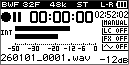
After formatting completes, the Home Screen will open.
|
|
|
Home Screen
|
2-2.Recording
Recording with the built-in mic
Point the built-in mic toward the front of the sound to be recorded.
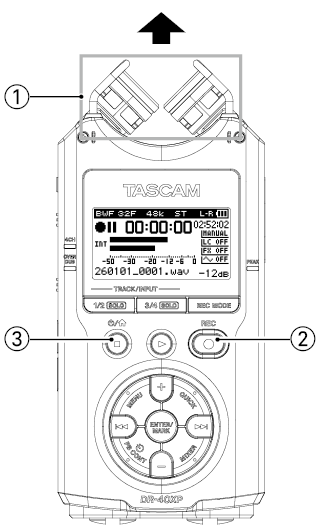
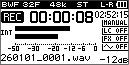
Press the REC [ ] button to start recording.
|
|
|
Screen while recording
|
Press the [] button to stop recording.
NOTE
See "5. Recording" for information about various recording settings and details, including adjusting recording levels, cutting low frequencies and using the limiter.
See "Recording with external mics (EXT MIC IN)" and "Recording from external devices (LINE IN)" for details about recording with external mics and other equipment.
|
Default settings (state when shipped from factory)
|
Recording mode
|
Stereo (2 channels)
|
|
Inputs
|
Built-in stereo mic input
|
|
Recording format
|
BWF 32-bit float
|
|
Sampling rate
|
48 kHz
|
|
2-3.Playing files
Using the built-in speaker for monitoring playback
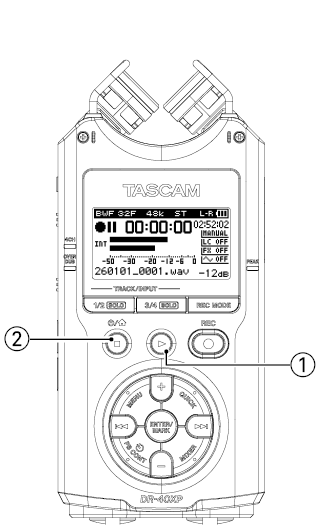
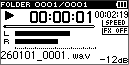
When recording is stopped, press the  button.
|
|
|
Screen during playback
|
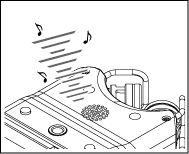
Playback will be output from the built in speaker on the back.
When paused or playing back, press the [] button.
NOTE
See "7. Playback" for details, including information about volume adjustment, playback file selection and other playback settings.
See "4-8. Connecting headphones" for details about using headphones for playback.
|
If the playback sound cannot be heard
Raise the playback volume.
Set SPEAKER to ON.
Record so that the playback sounds reach at least the halfway points of the level meters.
Try initializing the settings.
|
3. Names and functions of parts
3-1.Front
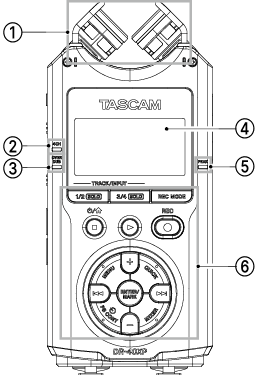
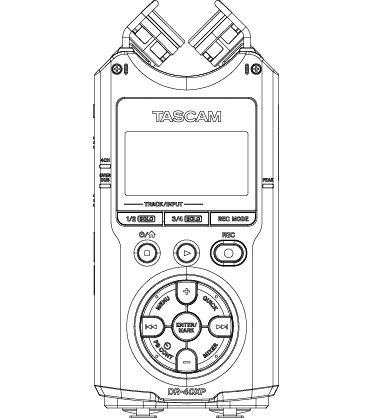
Built-in stereo microphone
This is a stereo pair of unidirectional electret condenser mics. The microphone pair can be set to open (A-B) or closed (X-Y).
4CH recording mode indicator
This lights orange when 4-channel recording mode is selected.
OVERDUB mode indicator
This lights orange when overdub recording mode is selected.
 Display
Displays a variety of information.
 PEAK indicator
This lights red light when input sound nears the maximum level.
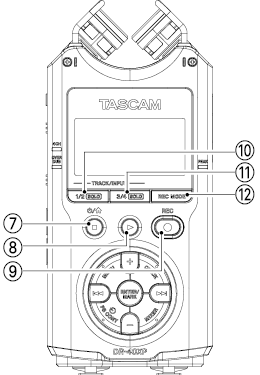
 Operation buttons
For details, see "Operation buttons (1)" and "Operation buttons (2)".
Operation buttons (1)
 [] button
Press and hold this button when stopped to turn the power on or off.
Press this during playback or recording to stop operation.
When a MENU Screen is open, press this button to return to the Home Screen.
 button
When the Playback Screen is open and playback is stopped, press this to start playback.
Press this when playing to go back a few seconds (jump back function).
 REC [] button/indicator
Press this button when stopped, lighting its indicator, to start recording.
Press this when recording to pause recording. The indicator will blink when recording is paused.
 1/2
1/2  button
This will function as follows according to the recording playback status.
Channels 1 and 2 will be selected as the subject of input level adjustment.
Only channels 1 and 2 will play back.
Channels 1 and 2 will be muted.
 3/4 button
This will function as follows according to the recording playback status.
Channels 3 and 4 will be selected as the subject of input level adjustment.
Only channels 3 and 4 will play back.
Channels 3 and 4 will be muted.
 REC MODE button
Press this button to open the REC MODE Screen.
When the REC MODE Screen is open, press this button to return to the Home Screen.
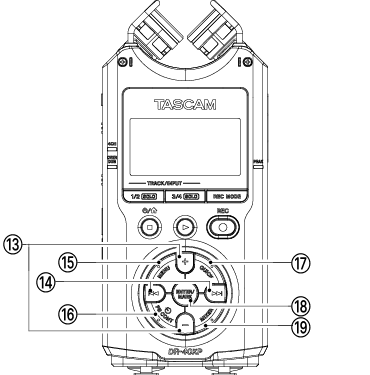
Operation buttons (2)
 +/− buttons
Use these to adjust output levels and move the cursor on the MENU Screen, for example.
 / buttons
Use these to skip between files, search during playback and move the cursor on the MENU Screen, for example.
 MENU button
When the Home Screen is open, press this button to open the MENU Screen.
When the IN and OUT points are set in the track and the Playback Control Screen is open, press this to turn loop playback on or off.
 PB CONT
  (playback control) button
Press this when stopped to enable the self-timer function. (5-18. Self-timer function)
Press this after selecting a file to open the Playback Control Screen. When the Playback Control Screen is open, press this to return to the normal mode. (7-10. Special playback control functions)
 QUICK button
Press this button to open the Quick Menu Screen. Depending on the state of the unit, the content shown might differ or the Quick Menu might not open. (8. Quick Operations)
 ENTER/MARK button
Use this to confirm on menu screens and pop-up messages.
Press when recording or playing back to add a mark. (9. Mark functions)
On the Playback Control Screen, use this button to set the IN (start) and OUT (end) points of the interval used for loop playback. (Loop playback of a selection)
 MIXER button
Press this button to open the Mixer Screen.
When the Mixer Screen is open, press this button to return to the Home Screen.
3-2.Back
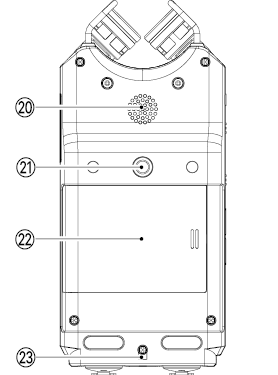
 Speaker for playback monitoring
This built-in mono speaker is for playback monitoring. (4-7. Checking recorded sounds using the speaker for playback monitoring)
 Tripod mounting threads (1/4-inch)
Use this to attach this unit to a tripod.
|
ATTENTION
Ensure the tripod or microphone stand screws are securely fastened to prevent the unit from falling off.
When attaching this unit to a tripod or microphone stand, be sure to place it on a level surface.
Some tripods have different screw specifications that make direct connection impossible. Use a commercially-available adapter with such tripods.
Use screws that are no more than 4.5 mm long.
|
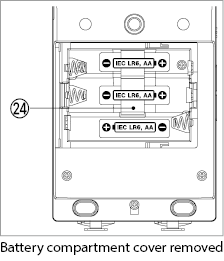
 Battery compartment cover
 Strap attachment
Use this to attach a strap.
 Battery compartment
Install batteries (3 AA) in this compartment to power the unit. (Using AA batteries)
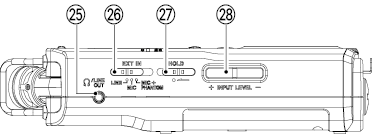
3-3.Left side panel

 /LINE OUT jack
Use this to connect headphones or the line input jack of other equipment using a cable with a 3.5 mm stereo mini plug.
 EXT IN switch
Use this to set the input type of the external input (MIC/LINE) jacks and whether phantom power is on or off. (Setting the external input type)
 HOLD switch
Shift to the left end (in the direction of the arrow) to engage the hold function.
No buttons can be used when HOLD is active.
 INPUT LEVEL (+/−) buttons
Use these to adjust the input level.
During adjustment, the input level setting status will be displayed in a pop-up window.
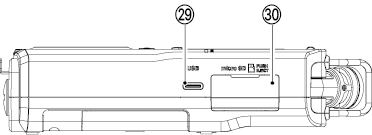
3-4.Right side panel
 USB port
This is a Type-C USB port.
Use a commercially-available USB cable to connect a computer or an iOS device. (13. USB connection)
|
ATTENTION
The unit should be connected directly to a computer or iOS device, not through a USB hub.
|
 microSD card slot
Use this slot to insert and remove microSD cards.
3-5.Front panel
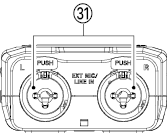
 EXT MIC/LINE IN L/R jacks (XLR/TRS)
These balanced analog inputs combine XLR mic and standard TRS jacks.
XLR (1: GND, 2: HOT, 3: COLD)
TRS (Tip: HOT, Ring: COLD, Sleeve: GND)
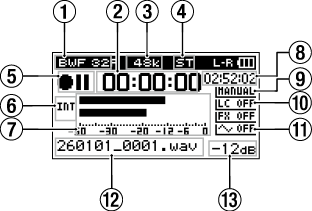
3-6.Recording Screen
Recording format
|
Indicator
|
Status
|
|

|
BWF 16-bit
|
|

|
BWF 24-bit
|
|

|
BWF 32-bit float
|
|

|
WAV 16-bit
|
|

|
WAV 24-bit
|
|

|
WAV 32-bit float
|
|

|
MP3 32 kbps
|
|

|
MP3 64 kbps
|
|

|
MP3 96 kbps
|
|

|
MP3 128 kbps
|
|

|
MP3 192 kbps
|
|

|
MP3 256 kbps
|
|

|
MP3 320 kbps
|
Elapsed recording time
The elapsed recording time of the file appears as hours: minutes: seconds.
Recording sampling rate
|
Indicator
|
Status
|
|

|
44.1 kHz
|
|

|
48 kHz
|
|

|
96 kHz
|
Number of recording channels
|
Indicator
|
Status
|
|

|
Stereo (2 channels)
|
|

|
Mono (1 channel)
|
Recorder operation status
|
Indicator
|
Status
|
|
|
Recording stopped
|
|

|
Recording paused
|
|

|
Recording
|
|

|
Recording stopped with prerecording function on
|
Input source
|
Indicator
|
Status
|
|

|
Built-in stereo mic input
|
|

|
External input
|
|

|
When in overdub recording (separate) mode, playback sounds of channels 1/2
|
|

|
When in overdub recording (mix) mode, mix of playback sounds and built-in stereo mic input
|
|

|
When in overdub recording (separate) mode, mix of playback sounds and external input
|
NOTE
When a track is soloed, its name appears highlighted  .
.
Level meters
These show the input sound levels.
During overdub recording (mix) mode, the levels of the mixed input and playback sounds are shown.
Available recording time
This shows the available recording time for the microSD card.
Level mode function status
|
Indicator
|
Status
|
|

|
MANUAL
|
|

|
LIMITER
|
|

|
PEAK REDUCTION
|
|

|
AUTO LEVEL
|
Low cut filter on/off status
|
Indicator
|
Status
|
|

|
Low cut filter off
|
|

|
Low cut filter on (example: 220 Hz)
|
Tone output setting status
|
Indicator
|
Status
|
|

|
Tone output off
|
|

|
Tone output on
|
File name
This shows the file name that is automatically assigned to the recording file.
The project name is shown when multiple files have been recorded in 4-channel or overdub recording mode.
Peak value in decibels (dB)
Peak input level values are shown in decibels.
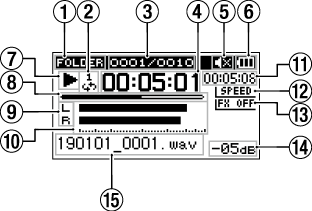
3-7.Playback Screen
Playback area
|
Indicator
|
Status
|
|

|
All files in the MUSIC folder
|
|

|
All files in the selected folder
|
|

|
All files added to the playlist
|
Loop/repeat playback setting
|
Indicator
|
Status
|
|

|
Single playback
|
|

|
Single file repeat playback
|
|

|
All file repeat playback
|
|

|
Loop playback
|
File number / total number of files
This shows the current file number and total number of files in the current playback area.
Elapsed time
This shows the elapsed time (hours: minutes: seconds) of the current file.
Speaker output
|
Indicator
|
Status
|
|

|
Speaker output off
|
|

|
Speaker output on
|
Power supply status
A battery icon appears when power is supplied by batteries.
When batteries are being used, these indicators are shown ( ,
,  ,
,  ).
).
The battery is almost dead and the power will soon turn off if the  icon with no bars blinks.
When using a TASCAM PS-P520U AC adapter or USB bus power,  appears.
Recorder operation status
|
Indicator
|
Status
|
|
|
Stopped
|
|
|
Paused
|
|
|
Playing
|
|

|
Searching forward
|
|

|
Searching backward
|
|
|
Skipping to the beginning of the next file
|
|
|
Skipping to the beginning of the current or previous file
|
Playback position display
The current playback position is shown by a bar. As playback progresses, the bar extends from the left.
Track status
The display changes according to the recording mode.
|
Indicator
|
Status
|
|

|
In mono recording mode or playing a file recorded in mono recording mode.
|
|

|
Playing a file recorded in 4-channel recording mode
|
|
 / / 
|
In overdub recording (separate) mode
|
|
 / / 
|
In overdub recording (mix) mode
|
NOTE
When a track is soloed, its name appears highlighted .
Level meters
These show the levels of input or playback signals.
When in overdub recording (mix) mode, the levels of the mixed input and playback sounds are shown.
Remaining time
This shows the remaining time (hours: minutes: seconds) of the current file.
Playback speed setting
|
Indicator
|
Status
|
|

|
×1.0
|
|

|
×1.1 – ×1.5
|
|

|
×0.5 – ×0.9
|
|

|
Playback speed not controllable
|
Effect on/off status
|
Indicator
|
Status
|
|

|
Built-in effect off
|
|

|
Built-in effect on
|
Peak value in decibels (dB)
The maximum level that occurs in a fixed period of time is displayed digitally.
File name
This shows the name of the file playing back or its tag information.
ID3 tag information is shown when available for an MP3 file being played.
The project name is shown when multiple files have been recorded in 4-channel or overdub recording mode.
NOTE
ID3 tag information contains titles and artist names, which can be stored in MP3 files.
3-8.Menu structure
Press the MENU button to open the MENU Screen. The menu items are as follows.
NOTE
Pressing the MENU button while recording will open the MENU Screen, but some functions will not be shown due to limitations when recording.
When the Playback Control Screen is open, pressing the MENU button will not open the MENU Screen. This turns the loop playback function on/off. (Loop playback of a selection)
4-1.Preparing the power supply
This unit can be powered by 3 commercially-available AA batteries, a TASCAM PS-P520U AC adapter (sold separately). or a commercially-available USB cable (USB bus power)
Using AA batteries
This unit can use Alkaline, Ni-MH or lithium AA batteries.
Open the battery compartment cover on the back, and install 3 batteries oriented with the  and
and  marks shown in the compartment. Then, close the battery compartment cover.
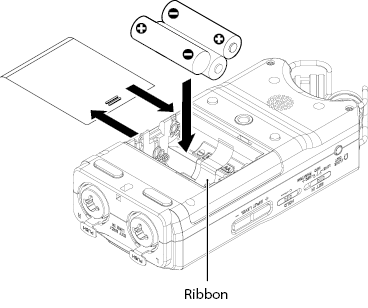
Set the battery type in order to show the remaining power and allow the unit to determine whether enough power is available for proper operation. (Setting the battery type)
NOTE
Do not use manganese batteries.
A great amount of power is required to provide phantom power to condenser mics. If condenser mics are used while powering the unit with batteries, operation time will be extremely reduced.
To operate the unit for a long time, supply power using a TASCAM PS-P520U AC adapter (sold separately) or USB bus power.
|
Use a commercially available recharger to charge rechargeable batteries.
This unit cannot recharge rechargeable batteries.
|
Using an AC adapter
As shown in the illustration, connect a TASCAM PS-P520U AC adapter (sold separately) to the unit's USB port.
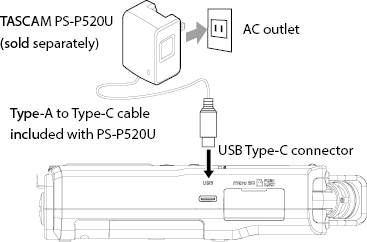
|
ATTENTION
Only use the specified TASCAM PS-P520U AC adapter (sold separately). Use of a different adapter could cause malfunction, fire or electric shock.
Noise may occur when recording with a microphone if the unit is too close to the AC adapter. In such a case, keep sufficient distance between the AC adapter and the unit.
|
NOTE
When batteries are installed and an AC adapter is connected, power will be supplied from the AC adapter.
Using USB bus power
Use the commercially-available USB cable to connect the unit and the computer as illustrated below.
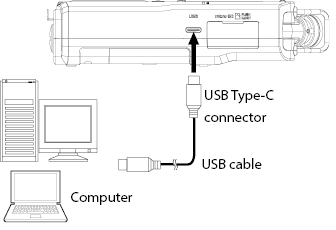
See "13-1. Powering the unit with USB bus power".
4-2.Turning the unit on and off
|
CAUTION
Turn down the volume of the sound system connected to the unit before starting up or shutting down the unit.
Do not wear connected headphones when turning the unit on and off. Noise could damage the headphone driver unit or harm your hearing.
|
Turning the unit on
1.Confirm that the HOLD switch is not set.
2.When the power is off, press and hold the [] button until TASCAM DR-40XP (the start-up screen) is shown.
|
|
|
Startup Screen
|
The Home Screen appears after the unit starts up.
|
|
|
Home Screen
|
NOTE
The first time the power is turned on after purchase, the following setting screens will be shown.
Language setting screen (4-3. Setting the display language)
Date and time setting screen (4-4. Setting the date and time)
Turning the unit off
1.Confirm that the HOLD switch is not set.
2.When the power is on, press and hold the [] button until LINEAR PCM RECORDER appears on the display.

The unit turns off after it completes its shutdown process.
|
ATTENTION
Always use the [] button to turn off the power.
If the unit is not able to conduct shutdown procedures properly, recording data, settings and other changes could be lost. Lost data and settings cannot be restored.
|
4-3.Setting the display language
The first time the power is turned on after purchase, a screen to set the display language will be shown.
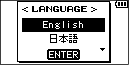
1.Press the + and − buttons to move the cursor and select the language to be shown on the display.
|
Options
|
|
|
English
|
English
|
|
日本語
|
Japanese
|
|
Français
|
French
|
|
Español
|
Spanish
|
|
Deutsch
|
German
|
|
Italiano
|
Italian
|
|
Português
|
Portuguese
|
|
Русский
|
Russian
|
|
中文
|
Chinese
|
|
한글
|
Korean
|
2.After selection, press the ENTER/MARK button to confirm.
NOTE
The display language setting can be changed with the SYSTEM Screen LANGUAGE item. (Setting the language)
|
Changing the setting if the language shown is wrong
After pressing the [] button to turn the unit off, while pressing the MENU button, press the [] button again.
The language selection menu will appear, and you will be able to select the language.
|
4-4.Setting the date and time
A screen where the date and time can be set will open the first time the unit is turned on after purchase and whenever the date and time has been reset.
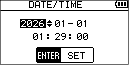
1.Use the and buttons to move the cursor, and use the + and − buttons to change values.
2.When setting is complete, press the ENTER/MARK button to confirm.
NOTE
The date and time can also be reset on other screens with date and time setting items.(14-3. Setting the date and time)
4-5.Inserting and removing microSD cards
A microSD card is necessary to record and play files with this unit. Please purchase one separately.
A list of microSD cards that have been confirmed for use with this unit can be found on the TASCAM website.
https://tascam.jp/int/product/dr-40xp/docs
Inserting microSD cards
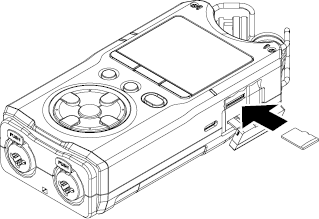
1.Open the microSD slot cover on the right side.
2.Insert the microSD Card into the slot as shown in the following illustration until it clicks into place.
Removing microSD cards
|
ATTENTION
Do not remove a microSD card from the unit when it is connected to a computer or iOS device by USB.
|
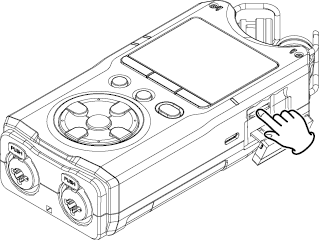
1.Open the microSD slot cover.
2.Press the microSD card in gently and then release it to allow it to come out.
4-6.Preparing microSD cards for use
This unit must format microSD cards so that it can use them.
|
ATTENTION
Before formatting a microSD card, back up any important data on the card to a computer or iOS device.
Formatting a microSD card erases all data on it. Erased data cannot be restored.
When formatting a microSD card, use batteries with sufficient remaining power. Alternatively, the unit should be operating on power supplied by a TASCAM PS-P520U AC adapter (sold separately) or USB bus power supplied from a computer.
If the power turns off during formatting, the formatting might not occur correctly.
|
1.Install the microSD card in the unit.
The following message appears when a new card or a card formatted for use with another device is installed in the unit.
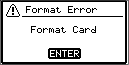
2.Press the ENTER/MARK button to start formatting.
After formatting completes, the Home Screen will open.
NOTE
microSD cards can be formatted anytime by using the QUICK FORMAT and ERASE FORMAT items on the SYSTEM Screen.(Formatting microSD cards)
4-7.Checking recorded sounds using the speaker for playback monitoring
To check recorded sounds using the unit’s speaker for playback monitoring, turn on the SPEAKER item on the I/O SETTING Screen (on by default).
1.Press the MENU button to open the MENU Screen.
2.Use the + and − buttons to select the I/O SETTING item, and press the ENTER/MARK or button.
The I/O SETTING Screen will open.
3.Use the + and − buttons to select the SPEAKER item, and press the ENTER/MARK or button.
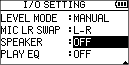
4.Use the + or − button to select ON.
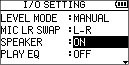
5.After completing the setting, press the [] button to return to the Home Screen.
NOTE
Even if SPEAKER is enabled, the unit will not output through the speaker for playback monitoring when it is recording or in recording standby, or when headphones or a monitoring system is connected.
This function is also available in the Quick Menu. (8. Quick Operations)
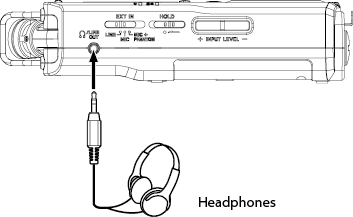
4-8.Connecting headphones
To listen with headphones, connect them to the  /LINE OUT jack.
5-1.Recording
This section explains recording procedures using the default settings (the state when shipped from the factory).
The default settings are as follows.
|
Recording mode
|
Stereo (2 channels)
|
|
Inputs
|
Built-in stereo mic input
|
|
Recording format
|
BWF 32-bit float
|
|
Sampling rate
|
48 kHz
|
1.When the Home Screen is open and the unit is stopped, press the REC [] button to start recording.
The REC indicator will light during recording.
2.Press the REC [] button during recording to pause recording.
The REC indicator will blink when paused.
Press the REC [] button again to restart recording in the same file.
3.Press the [] button during recording or when paused to stop recording.
The REC indicator will become unlit when stopped.
Recorded files are saved in the "MUSIC” folder.
NOTE
To change where recorded files are saved, see "6-5. Folder operations".
5-2.Setting the recording format
1.Press the MENU button to open the MENU Screen.
2.Use the + and − buttons to select the REC SETTING item, and press the ENTER/MARK or button.
The REC SETTING Screen opens.
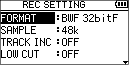
3.Use the + and − buttons to select the FORMAT item, and press the ENTER/MARK or button.
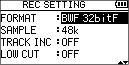
4.Use the + and − buttons to select the recording format.
|
Options
|
|
BWF 16bit
|
|
BWF 24bit
|
|
BWF 32bitF (default)
|
|
WAV 16bit
|
|
WAV 24bit
|
|
WAV 32bitF
|
|
MP3 32k bps
|
|
MP3 64k bps
|
|
MP3 96k bps
|
|
MP3 128k bps
|
|
MP3 192k bps
|
|
MP3 256k bps
|
|
MP3 320k bps
|
NOTE
BWF is a format created for broadcasting that has the same sound quality as the standard WAV format. It also uses the same “.wav” file extension as WAV files.
WAV/BWF formats provide better recording quality than MP3 formats.
MP3 formats enable longer recording times than WAV/BWF formats.
MP3 formats with higher values provide better recording quality.
|
32-bit float
32-bit float format has a very wide dynamic range, allowing it to accurately record sounds that are extremely quiet and extremely loud.
As long as the input is not excessive at the mic input stage, there is no worry about sound clipping during recording and levels can be adjusted suitably while editing later.
While editing, a wide range of adjustment is possible because audio quality can be maintained with little degradation even when the level is adjusted significantly.
|
5-3.Setting the sampling rate
1.Press the MENU button to open the MENU Screen.
2.Use the + and − buttons to select the SAMPLE item, and press the ENTER/MARK or button.
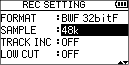
3.Use the + and − buttons to set the sampling rate.
|
Options
|
|
44.1k
|
|
48k (default)
|
|
96k
|
NOTE
96k cannot be selected if FORMAT is set to MP3.
4.After completing the setting, press the [] button to return to the Home Screen.
5-4.Making input settings
Selecting input signals
Input signals from the built in stereo mic or external devices can be selected. Input signal selection can be done on the REC MODE Screen. (5-7. Selecting input signals)
Recording with the built-in stereo mic
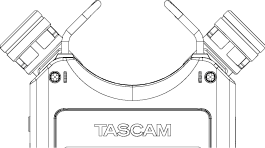
This unit has an adjustable stereo mic built in. By changing the mic positions according to the recording situation, optimal stereo images can be captured.
Point the mics at the sound source and place the unit in a stable location where there is little vibration.
Mic positions
X-Y position (closed)
The mics are oriented toward the center in a closed state. This enables clear stereo recording with distinct positioning and little phase difference.
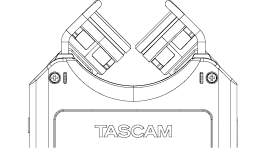
A-B position (open)
The mics are open to the left and right. This enables recording with a sense of width and proximity.
Swapping channels
Depending on the recording conditions, swapping the left and right (L/R) recording channels might be necessary.
When the mic position is changed (X-Y to/from A-B)
When the mics (L/R) are opened or closed, the left and right channels might become reversed.
At such times, a pop-up message will appear asking whether to change the mic orientation. Select “YES” to switch to the correct channel settings.
When recording with the unit oriented toward you (self-recording)
This unit was designed for recording in a forward direction (toward someone else).
When recording with it oriented toward yourself, the left and right channels might become reversed.
Swapping channels
1.Press the MENU button to open the MENU Screen.
2.Use the + and − buttons to select the I/O SETTING item, and press the ENTER/MARK or button.
This will open the I/O SETTING Screen.
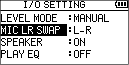
3.Use the + and − buttons to select the MIC LR SWAP item, and press the ENTER/MARK or button.
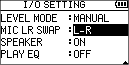
4.Use the + or − button to select L-R or R-L according to the mic open/closed state.
NOTE
This function is also available in the Quick Menu.
(8. Quick Operations)
Recording with external mics (EXT MIC IN)
Connect external mics to the EXT MIC/LINE IN jacks (XLR or TRS) of the unit.
Point the mics at the sound source and place the unit in a stable location where there is little vibration.
NOTE
Phantom power can only be used with the XLR jacks.
Recording from external devices (LINE IN)
Connect the outputs of external audio devices to the EXT MIC/LINE IN jacks (XLR or TRS) of the unit.
|
ATTENTION
Phantom power will be supplied to the XLR jacks. Turn it off for equipment connecting at line level.
|
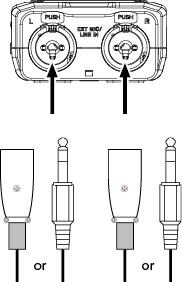
Setting the external input type
When using an external input source, set the EXT IN switch on the left side panel according to the type of equipment connected.
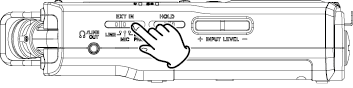
LINE
Set to LINE when connecting line output jacks of external devices to the analog inputs of this recorder.
MIC
Set to MIC when connecting mics to the unit.
MIC+PHANTOM
Set to MIC+PHANTOM when connecting condenser mics that require phantom power (+24V or +48V) to the recorder.
|
CAUTION
Before changing this setting, turn off the power or turn the output level all the way down.
Depending on the setting, switching the input gain could greatly change the output level.
|
Using phantom power
Setting the EXT IN switch on the left side to MIC+PHANTOM, turns on phantom power (+24V or +48V) and supplies it to the mics.
For details about phantom power selection (+24V or +48V), see "Setting the phantom power voltage".
|
ATTENTION
Confirm that phantom power is off before connecting a line level device to an EXT MIC/LINE IN jack.
Connecting a line-level device while phantom power is being supplied, could damage that device and this unit.
Do not connect or disconnect mics with the EXT MIC/LINE IN jacks when the phantom power switch is set to ON.
Doing so could cause a loud noise and might damage this unit and connected equipment.
Turn on phantom power only when using condenser mics.
Depending on the connection method and specifications of the equipment, turning phantom power on when a dynamic mic or other device that does not require it is connected could cause problems with this unit or that equipment.
When using condenser mics and dynamic mics at the same time, be sure to use dynamic mics with balanced connections.
Unbalanced dynamic mics cannot be used when phantom power is enabled.
Supplying phantom power to some ribbon mics could break them. When in doubt, do not supply phantom power to a ribbon mic.
Do not connect or disconnect a USB cable with the USB port when using phantom power.
Even when batteries are loaded in this unit, the power supply could be interrupted, resulting in the loss of or damage to data when recording.
|
NOTE
When using USB bus power, the unit might not be able to supply phantom power depending on the computer. In this case, use a TASCAM PS-P520U AC adapter (sold separately).
Some condenser microphones will not operate when phantom power is set to +24V.
|
Check with the manufacturer of the mic being used in advance to confirm whether phantom power can be supplied to it without trouble.
|
5-5.Adjusting the input level
Input levels should be adjusted to prevent recorded sounds from being distorted by levels that are too high and from being so low that they are below the noise floor.
In addition to making manual adjustments, you can use the available limiter, automatic peak reduction and automatic level adjustment functions as you like.
Setting the LEVEL MODE function
1.Press the MENU button to open the MENU Screen.
2.Use the + and − buttons to select the I/O SETTING item, and press the ENTER/MARK or button.
The I/O SETTING Screen will open.
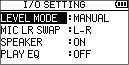
3.Use the + and − buttons to select the LEVEL MODE item, and press the ENTER/MARK or button.
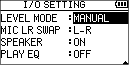
4.Use the + and − buttons to set the LEVEL MODE function.
|
Options
|
|
MANUAL (default)
|
|
LIMITER
|
|
PEAK REDUCTION
|
|
AUTO LEVEL
|
5.After completing the setting, press the [] button to return to the Home Screen.
NOTE
Only manual level adjustment is available when 32-bit float is selected.
This function is also available in the Quick Menu.
(8. Quick Operations)
Manually adjusting the input level
To adjust the input level manually, set the LEVEL MODE function to MANUAL.
Adjust the input level using the INPUT LEVEL + and − buttons on the left side.
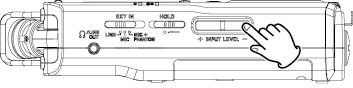
The adjustment range differs according to the selected input signal.
|
Built-in mic
|
0–90
|
|
EXT MIC
|
0–90
|
|
EXT LINE
|
0–24
|
Check the level meters and decibel (dB) display while adjusting input levels.
Audio distortion can be prevented by adjusting settings so the level overload indicator does not light and the decibel (dB) display does not reach 0 dB.
4-channel recording mode operation procedures
In 4-channel recording mode, before adjusting input levels, press the 1/2 or 3/4 button to select the input source.
|
1/2 button
|
Built-in mic input level
|
|
3/4 button
|
External input level
|
Moreover, if the recording mode input item is set to EXT INDEP., pressing the 3/4 button will switch between the L and R channels.
|
ATTENTION
If the input level is too high, recorded sounds might be distorted.
If the PEAK indicator lights, increase the distance from the sound source or reduce the volume of the external device.
This cannot be resolved by adjusting the input level.
|
NOTE
When recording in 32-bit float, the dB indicator might exceed 0 dB. In this case, even if the level overload indicator lights, as long as the PEAK indicator does not light, the level can be adjusted suitably when editing afterward.
Even if the input level is set to 0, the input signal will not be muted.
Connect headphones to the /LINE OUT jack to adjust the level or record while monitoring the input.
Use the + and − buttons when the Home Screen is open to adjust the monitoring volume. This does not affect the sound to be recorded.
Using the limiter
To use the limiter, set the LEVEL MODE function to LIMITER.
The limiter prevents distortion when signals that are too loud are input suddenly. This is suited for recording live performances and other situations with large volume changes.
Even when the limiter is enabled, input levels can be manually adjusted by using the INPUT LEVEL (+/−) buttons.
|
ATTENTION
Distortion could occur when the input sound is excessively loud even if the limiter function is on. In such a case, lower the input level or increase the distance between the unit and the source.
|
Using automatic peak reduction
To use the automatic peak reduction function, set the LEVEL MODE function to PEAK REDUCTION.
The automatic peak reduction function automatically lowers the input level suitably if the input sound is too loud. This function makes handling difficult input level settings easier.
The input level can be raised manually if required.
TIP
When recording live performances, for example, you could test PEAK REDUCTION before the actual recording.
Select the PEAK REDUCTION mode and maximize the input level. By conducting a rehearsal performance, the input level will be lowered and set to a suitable level for the performance.
This set input level can be used for recording by turning this mode off before starting recording. By recording with it on, the input level will continue to be adjusted automatically in response to the input signal.
Using the automatic level adjustment function
To use the automatic level adjustment function, set the LEVEL MODE function to AUTO.
Low input levels are raised and high input levels are lowered automatically, making this useful for recording meetings, for example. In this mode, the recording level cannot be changed manually.
5-6.Selecting the recording mode
1.Press the REC MODE button to open the REC MODE Screen.
2.Use the + and − buttons to select the REC MODE item, and press the ENTER/MARK or button.
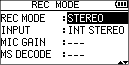
3.Use the + or − button to select the recording mode.
|
Options
|
|
MONO
|
|
STEREO (default)
|
|
4CH
|
|
OVERDUB
|
4.Press the button to return to setting item selection.
5.Use the + and − buttons to select the INPUT item, and press the ENTER/MARK or button.
The settings available are different for each recording mode.
Mono recording mode
If the built-in stereo mic is selected as the input, the sound will be mixed to mono and recorded.
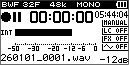
Stereo recording mode
In stereo recording mode, which is the default, stereo sound input is recorded as is in a stereo file. The corresponding signals are recorded to the left and right (L/R) channels.
File names when recording in mono/stereo
: Set by the FILE NAME Screen TYPE item
 : Recording file base number
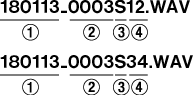
4-channel recording mode
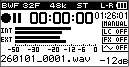
In 4-channel recording mode, two stereo files (channels 1/2 and channels 3/4) are recorded and saved simultaneously.
|
Channels 1/2
|
Built-in stereo mic signals
|
|
Channels 3/4
|
External input signals
|
If EXT IN L is selected for EXT IN, the EXT IN L signal will be recorded on channel 3 and silence will be recorded on channel 4.
NOTE
If the EXT IN item is set to EXT IN L and centering the EXT IN L channel is desired when monitoring EXT IN L, press the MIXER button and set the CH3 PAN to C (center).
File names when recording in 4-channel mode
 : Set by the FILE NAME Screen TYPE item
: Recording file base number
 : “S” is the source file
 : Assigned channels
(“12” is channels 1/2 and “34” is channels 3/4)
Overdub recording modes
In overdubbing modes, input sounds can be recorded on top of sounds that are playing back.
There are two types of overdubbing modes.
SEPARATE mode
The file on channels 1/2 is played back and the input sound is recorded on channels 3/4.
The playback signals of channels 1/2 are not mixed with channels 3/4.
The original file is not overwritten.
MIX mode
The file on channels 1/2 is played back and a mix of the playback and input sounds are recorded on channels 3/4 as a new file.
The original file is not overwritten.
When overdubbing a mono file (MIX), if the built-in mic is selected, the mixed L/R sound will be recorded.
In addition, if EXT IN L/R or EXT INDEP. is selected, the EXT IN L signal will be recorded.
When overdubbing a stereo file (MIX), if EXT IN L is selected, the EXT IN L signal will be recorded on both channels 1 and 2.
NOTE
If the playback files are 96kHz WAV/BWF or MP3 format files that were recorded in 4-channel mode, recording is not possible in overdub recording (mix) mode. (“×” will appear at the beginning of the file name.)
Mix them down to one file before overdubbing. (8-8. Mixdown)
Selecting files for overdubbing
Use the and buttons and the Browse Screen to select that files that you want to overdub.
NOTE
If the playback file is mono, the recorded file will also be mono.
Moreover, if the playback file is mono, overdub recording (separate mode) cannot be used.
Conducting overdubbing
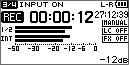
1.Press the REC [] button to start overdub recording.
The REC indicator will light during recording.
|
|
|
Recording (separate)
|
|
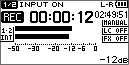
|
|
Recording (mix)
|
2.Press the [] button to stop recording.
The REC indicator will become unlit when stopped.
NOTE
The overdubbing modes have the following restrictions.
The prerecording and automatic recording functions are disabled.
Files cannot be incremented manually.
The format and sampling rate of the playback file will be used regardless of the recording format and sampling rate settings.
The mid-side decoding function cannot be used.
Pausing is not possible in overdubbing mode.
File names when overdubbing
When overdubbing, file names are generated differently according to the DUB MODE setting.
In SEPARATE mode
Playback file
|
File-A:
|
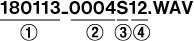
|
Newly recorded file
(Recorded sound only without mixing in playback sound)
|
File-B:
|

|
If the same playback file (File-A) is used to record again, File-B above is saved as a virtual file as shown below (File-C), and the new recording file is given the File-B file name.
|
File-C:
|

|
If the same playback file (File-A) is used to record one more time (and File-B and File-C above are saved), File-B is saved as a virtual file (File-D) with the number at  increased by one as shown below, and the new recording file given the File-B file name.
|
File-D:
|

|
In MIX mode
Playback file
|
File-A:
|
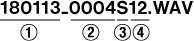
|
Newly recorded file
(Recorded with the playback signal (File-A) mixed in)
|
File-E:
|

|
If you record again using the same playback file (File-A), the file name of the new recording will be as follows.
|
File-F:
|
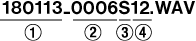
|
Each time recording occurs with the same playback file, the number in item increases by one for the name of each new file.
: Set by the FILE NAME Screen WORD item
: Recording file base number
: “S” is the source file and “V” is the virtual file
: Assigned channels (“12” is channels 1/2 and “34” is channels 3/4)
: Backup number in the virtual file
NOTE
In overdub recording (separate) mode, the base number of the recording file and “S12” are added to the name of the playback file.
If writing files copied from elsewhere is not possible, enable writing using a computer or iOS device, for example.
5-7.Selecting input signals
1.Press the REC MODE button to open the REC MODE Screen.
2.Use the + and − buttons to select the INPUT item, and press the ENTER/MARK or button.
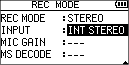
3.Use the + or − button to select the input sound.
The input sounds that can be selected differ according to the recording mode. The input sounds are as follows.
Mono recording mode
|
Options
|
|
INT MONO
|
|
EXT IN L
|
Stereo recording mode
|
Options
|
|
INT STEREO
|
|
EXT IN L/R
|
|
EXT INDEP.
|
4-channel recording mode
|
Options
|
|
EXT IN L/R
|
|
EXT INDEP.
|
|
EXT IN L
|
Overdub recording mode
|
Options
|
|
INT STEREO
|
|
EXT IN L/R
|
|
EXT INDEP.
|
|
EXT IN L
|
NOTE
In 4-channel recording mode, the input sound can be selected only for channels 3/4. Channels 1/2 are always the built-in stereo mic.
When overdubbing a mono file (mix), if the built-in mic is selected, the mixed L/R sound will be recorded.
5-8.Setting input gain
Input gain can be set at different levels for the external mics as necessary.
Select suitable gain levels according to the application and environment.
1.Press the REC MODE button to open the REC MODE Screen.
2.Use the + and − buttons to select the MIC GAIN item, and press the ENTER/MARK or button.
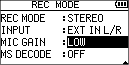
3.Use the + or − button to select the input gain level.
For external mics
|
Options
|
|
|
LOW (default)
|
Use when recording loud sounds like bands as well as condenser mics with high sensitivity
|
|
HIGH
|
Use when recording quiet sounds like ASMR as well as dynamic mics with low sensitivity
|
TIP
Try the “LOW” setting first. If the volume is low even when the input level is at maximum, switch it to “HIGH”.
NOTE
Even when an external input is selected, the gain setting will have no effect if the EXT IN switch is set to LINE.
5-9.Input delay function
In 4-channel recording mode, this function can compensate for time delays that occur between sounds because of the distance between the built-in mic and the external mics.
This compensation is based on the built-in mic.
If an external mic is closer to the sound source, setting this in a range from 0 to +150 can bring the timing of that mic closer to that of the built-in mic.
If an external mic is farther from the sound source, setting this in a range from 0 to −150 can bring the timing of that mic closer to that of the built-in mic.
1.Press the REC MODE button to open the REC MODE Screen (4-channel recording mode).
2.Use the + or − button to select the EXT L DLY or EXT R DLY item, and press the ENTER/MARK or button.
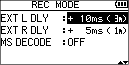
3.Use the + and − buttons to set the input delay time.
Setting range: −150ms (51m) – 0ms (0m) (default) – +150ms (51m)
5-10.Connecting mid-side mics
By correctly connecting mid-side (MS) mics, the best audio quality and stereo image can be achieved.
Connect the mid-side mic mid output to the EXT MIC L connector and the side output to the EXT MIC R connector.
Stereo width and positioning cannot be achieved as is with the signals from mid-side mics. Stereo images with natural width and a sense of placement can be achieved by using MS decoding to convert the mid-side components into left and right sounds.
For details about using the MS DECODE function, see "11-2. Using the mid-side decoding function".
5-11.Input solo monitoring function
In 4-channel recording mode, press and hold the 1/2 button or the 3/4 button to monitor sound from only the selected input.
Press and hold the button again to disable solo monitoring.
Using the solo monitoring function for input sounds allows them to be checked without being affected by other sounds.
|
1/2 button
|
Channels 1/2
|
|
3/4 button
|
Channels 3/4
|
5-12.Input muting function
When in an overdub recording mode, input sounds can be temporarily muted.
The buttons used for muting differ according to the recording mode.
SEPARATE mode
Press the 3/4 button to mute the input sound.
Press it again to unmute.
MIX mode
Press the 1/2 button to mute the input sound.
Press it again to unmute.
NOTE
Starting recording will automatically disable muting. This prevents recording silence.
5-13.Automatically starting recording (AUTO REC)
This function starts and pauses recording, starts new files, and sets marks automatically according to the input signal level.
1.Press the MENU button to open the MENU Screen.
2.Use the + and − buttons to select the REC SETTING item, and press the ENTER/MARK or button.
The REC SETTING Screen opens.
3.Use the + and − buttons to select the MODE item, and press the ENTER/MARK or button.
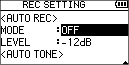
4.Use the + and − buttons to set the automatic recording mode.
|
Options
|
|
|
OFF (default)
|
|
|
NEW FILE
|
Records and pauses automatically
|
|
MARK
|
Adds marks automatically when recording
|
5.Press the button to enable selection of settings.
6.Use the + and − buttons to select the LEVEL item, and press the ENTER/MARK or button.
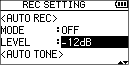
7.Use the + and − buttons to set the level that the unit recognizes as an input signal.
|
Options
|
|
−6dB
|
|
−12dB (default)
|
|
−24dB
|
|
−48dB
|
8.After completing the setting, press the [] button to return to the Home Screen.
9.After the REC [] button is pressed, recording will start automatically when the input signal exceeds the set level.
Operations while recording are as follows according to the MODE setting.
When NEW FILE
If the input signal level falls below the standard level set by LEVEL for more than five seconds, the unit pauses. When the input signal level becomes higher than the standard level, the unit starts recording a new file.
When MARK
If the input signal level falls below the standard level set by LEVEL for more than 5 seconds, the unit adds a mark when the input signal level becomes higher than the standard level again.
10.Press the [] button to stop recording.
NOTE
The automatic recording function cannot be used when overdub recording or overwrite recording.
When the AUTO REC mode item is set to NEW FILE or MARK, the self-timer function cannot be used. However, the self-timer function can be used when in an overdub recording mode.
TIP
By using the AUTO REC and PRE REC functions in combination, recordings can be captured without losing the beginnings of sounds.
5-14.Dividing files during recording (track incrementation)
During recording, the unit can create a new file while continuing to record (track incrementation). This can be done manually or automatically when the maximum file size (2 GB) is reached.
Manually incrementing files during recording
During recording, new files can be manually started without interrupting recording (track incrementation).
Press the button while recording.
NOTE
When new files are created, incremental numbers are added to the end of each project name.
A new file cannot be created if the total number of files and folders would exceed 5000.
Files shorter than two seconds cannot be created.
If the sampling rate is 96 kHz, files shorter than four seconds cannot be created.
If the name of a newly created file would be the same as that of an existing file, the number will be incremented until the new file has a unique name.
The track incrementation function cannot be used when overdub recording or overwrite recording.
Automatically incrementing files by a set time
Without pausing recording, a new file can be created automatically during recording when the time set on the TRACK INC Screen is reached.
Follow these procedures to set the amount of time that triggers track incrementation.
1.Press the MENU button to open the MENU Screen.
2.Use the + and − buttons to select the REC SETTING item, and press the ENTER/MARK or button.
The REC SETTING Screen opens.
3.Use the + and − buttons to select the TRACK INC item, and press the ENTER/MARK or button.
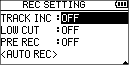
4.Use the + and − buttons to set the automatic file incrementation time.
|
Options
|
|
OFF (default)
|
|
5min
|
|
10min
|
|
15min
|
|
30min
|
|
60min
|
5.After completing the setting, press the [] button to return to the Home Screen.
NOTE
A new file cannot be created if the total number of files and folders would exceed 5000.
5-15.Reducing low frequency noise
The low cut filter can reduce noise such as offensive wind noise from air-conditioners and projectors.
1.Press the MENU button to open the MENU Screen.
2.Use the + and − buttons to select the REC SETTING item, and press the ENTER/MARK or button.
The REC SETTING Screen opens.
3.Use the + and − buttons to select the LOW CUT item, and press the ENTER/MARK or button.
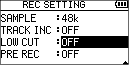
4.Use the + and − buttons to select the cutoff frequency of the low cut filter for mic input.
|
Options
|
|
OFF (default)
|
|
40Hz
|
|
80Hz
|
|
120Hz
|
|
220Hz
|
5.After completing the setting, press the [] button to return to the Home Screen.
NOTE
This function is also available in the Quick Menu.
(8. Quick Operations)
5-16.Capturing a few seconds before starting recording (PRE REC)
The unit can capture signals up to two seconds before recording is started.
1.Press the MENU button to open the MENU Screen.
2.Use the + and − buttons to select the REC SETTING item, and press the ENTER/MARK or button.
The REC SETTING Screen opens.
3.Use the + and − buttons to select the PRE REC item, and press the ENTER/MARK or button.
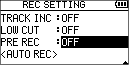
4.Use the + or − button to select ON. (Default: OFF)
5.After completing the setting, press the [] button to return to the Home Screen.
NOTE
The pre-recording function is disabled during overdub and overwrite recording.
TIP
By using the AUTO REC and PRE REC functions in combination, recordings can be captured without losing the beginnings of sounds.
5-17.Using tone output
The tone output function can be used to automatically insert a tone signal whenever recording starts and stops.
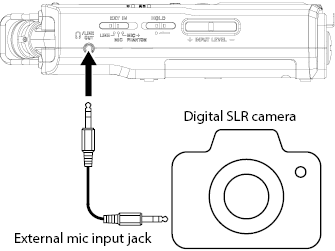
By connecting the /LINE OUT jack on the left side of the unit and the external mic input jack of a video camera or digital camera capable of recording video and using the AUTO TONE function, the same tone signal can be recorded to files on both units. These tones can be used as guides when synchronizing the files in video editing software.
|
|
|
Connection example
|
Setting the AUTO TONE
|
ATTENTION
When recording is stopped by the AUTO REC function, no tone signal will be recorded when it stops.
|
1.Press the MENU button to open the MENU Screen.
2.Use the + and − buttons to select the REC SETTING item, and press the ENTER/MARK button or the button.
The REC SETTING Screen opens.
3.Use the + and − buttons to select the AUTO TONE item, and press the ENTER/MARK or button.
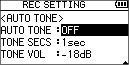
4.Use the + and − buttons to set when tone signals are inserted.
|
Options
|
|
|
OFF (default)
|
|
|
HEAD
|
Tones are only output at the start of recording.
|
|
HEAD+TAIL
|
Tones are output at both the start and end of recording.
|
5.After completing the setting, press the [] button to return to the Home Screen.
NOTE
When tone output is on, will appear on the Recording Screen.
Setting the AUTO TONE length
You can set the length of the AUTO TONE.
1.Press the MENU button to open the MENU Screen.
2.Use the + and − buttons to select the REC SETTING item, and press the ENTER/MARK button or the button.
The REC SETTING Screen opens.
3.Use the + and − buttons to select the TONE SECS item, and press the ENTER/MARK or button.
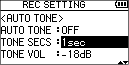
4.Use the + and − buttons to set the tone length.
|
Options
|
|
0.5sec
|
|
1sec (default)
|
|
2sec
|
|
3sec
|
5.After completing the setting, press the [] button to return to the Home Screen.
Adjusting the AUTO TONE volume
You can adjust the volume of the AUTO TONE.
1.Press the MENU button to open the MENU Screen.
2.Use the + and − buttons to select the REC SETTING item, and press the ENTER/MARK button or the button.
The REC SETTING Screen opens.
3.Use the + and − buttons to select the TONE VOL item, and press the ENTER/MARK or button.
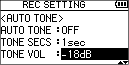
4.Use the + and − buttons to adjust the tone volume.
|
Options
|
|
−12dB
|
|
−18dB (default)
|
|
−24dB
|
|
−30dB
|
|
−36dB
|
5.After completing the setting, press the [] button to return to the Home Screen.
5-18.Self-timer function
Similar to a camera, the DR-40XP has a self-timer function to begin recording after a set period of time.
1.Press the PB CONT button when recording is stopped.
The self-timer icon  appears with the time shown to the right on the recorder status screen.
Each time you press the PB CONT button, the setting changes as follows.
Time shown to the right of the icon
OFF (default)  5S (5 seconds) 10S (10 seconds) OFF
2.After setting the time, press the REC [].
Recording will start after the set time period.
NOTE
This function is not a timer for starting recording automatically at a time set in advance.
The self-timer cannot be used at the following times.
When recording is paused
When the AUTO REC mode is set to NEW FILE or MARK
When overdubbing
When overwrite recording
5-19.Recording times
The table below shows maximum recording times by file format on microSD cards of different capacities.
|
File format (recording setting)
|
microSD card capacity
|
|
32 GB
|
64 GB
|
128 GB
|
|
16-bit WAV/BWF
(stereo)
|
44.1 kHz
|
49:20
|
98:40
|
197:20
|
|
48 kHz
|
45:20
|
90:40
|
181:20
|
|
96 kHz
|
22:40
|
45:20
|
90:40
|
|
24-bit WAV/BWF
(stereo)
|
44.1 kHz
|
32:56
|
65:52
|
131:44
|
|
48 kHz
|
30:16
|
60:32
|
121:04
|
|
96 kHz
|
15:04
|
30:08
|
60:16
|
|
32-bit float WAV/BWF
(stereo)
|
44.1 kHz
|
24:40
|
49:20
|
98:40
|
|
48 kHz
|
22:40
|
45:20
|
90:40
|
|
96 kHz
|
11:20
|
22:40
|
45:20
|
|
MP3
(stereo/mono)
|
32 kbps
|
44.1 kHz/48 kHz
|
2209:36
|
4419:12
|
8838:24
|
|
64 kbps
|
44.1 kHz/48 kHz
|
1104:48
|
2209:36
|
4419:12
|
|
96 kbps
|
44.1 kHz/48 kHz
|
736:32
|
1473:04
|
2946:08
|
|
128 kbps
|
44.1 kHz/48 kHz
|
552:24
|
1104:48
|
2209:36
|
|
192 kbps
|
44.1 kHz/48 kHz
|
368:16
|
736:32
|
1473:04
|
|
256 kbps
|
44.1 kHz/48 kHz
|
276:08
|
552:16
|
1104:32
|
|
320 kbps
|
44.1 kHz/48 kHz
|
220:56
|
441:52
|
883:44
|
The recording times shown above are estimates. They might differ depending on the microSD card in use.
The recording times shown above are not continuous recording times, but rather they are total possible recording times for microSD cards.
If a recording time exceeds 24 hours, the unit will automatically continue recording in a new file.
If recorded in mono in WAV files, the maximum recording time will be double the figures above.
For 3-channel and 4-channel recording in WAV/BWF format, the recording times are about half those shown above.
6. File and folder operations
Work with files and folders on the Browse Screen.
The Browse Screen shows the contents of the MUSIC folder, which contains the audio files on the microSD card. On this screen, you can also play and erase selected audio files, create folders, add tracks to the playlist and so on. (7-8. Using the playlist)
TIP
By using this unit as an SD card reader or directly loading the microSD card on a computer or iOS device, the folder structure within the MUSIC folder can be changed and files can be deleted. File names can also be changed. (13-2. Using as an SD card reader)
6-1.Opening the Browse Screen
1.Press the MENU button to open the MENU Screen.
2.Use the + and − buttons to select the BROWSE item, and press the ENTER/MARK or button.
The Browse Screen will open.
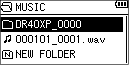
The contents of the folder that contains the file that was selected on the Home Screen before the Browse Screen was opened appears on the display.
6-2.Screen navigation
On the Browse Screen, folders and files appear in a hierarchical structure much like they would appear on a computer or iOS device. Only two levels of folders can be created.
Use the + and − buttons to select files and folders.
When a folder is selected, press the button to show the contents of that folder.
When a file or folder is selected, press the button to exit the currently open folder and go to a higher level in the folder structure.
When a file or folder is selected, press the QUICK button to open the pop-up window.
When a file is selected (highlighted), press the button to select that file and return to the Home Screen.
This folder that contains this file becomes the current folder, and new recorded file will be saved in this folder. If the playback area has been set to FOLDER, this folder becomes the new playback area.
When a file is selected (highlighted), press the ENTER/MARK button to start playback and return to the Home Screen.
When a folder is selected, press the ENTER/MARK button to return to the Home Screen. The first file in the folder (shown at the top of the file list) will be played.
This folder becomes the current folder, and new recorded files will be saved in this folder. Regardless of the previous setting, the playback area is set to FOLDER, and this folder becomes the new playback area.
6-3.Icons on the Browse Screen
The meanings of icons that appear on the Browse Screen are as follows.
 Root Music Folder
The MUSIC Folder is the highest (root) level folder in the hierarchy shown on the Browse Screen.
 Audio file
The  icon appears before the names of music files.
 Folder
This is a folder that contains subfolders.
 Plain folder
This is a folder that does not contain subfolders.
 Open folder
The contents of the folder marked with this icon currently appear on this screen.
6-4.File operations
Select the desired audio file on the Browse Screen and press the QUICK button to open the pop-up window that is shown below.
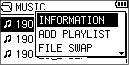
Use the + and − buttons to select the desired item, and press the ENTER/MARK button.
INFORMATION
Information (date/time, size) about the selected file appears. Press the ENTER/MARK button again or press the [] button to return to the Browse Screen.
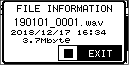
ADD LIST
Adds the selected file to the playlist. (7-8. Using the playlist)
FILE SWAP
Files recorded during the following recording modes can be swapped.
In 4-channel recording mode
A file recorded by the built-in mics (channels 1/2) can be swapped with a file recorded by external mics or equipment (channels 3/4).
|
Example:
|
260101_0002S12.WAV

260101_0002S34.WAV
|
|
|
|
260101_0002S34.WAV
260101_0002S12.WAV
|
In overdub recording (separate) mode
Playback files and newly recorded files can be swapped.
|
Example:
|
260101_0004S12.WAV
260101_0004S34.WAV
|
|
|
|
260101_0004S34.WAV
260101_0004S12.WAV
|
The above is the same as swapping File-A and File-B file names when overdubbing.
A newly recorded file and a virtual file saved because of that can be swapped.
|
Example:
|
260101_0004S34.WAV
260101_0004V34t1.WAV
|
|
|
|
260101_0004V34t1.WAV
260101_0004S34.WAV
|
The above is the same as swapping File-B and File-C file names when overdubbing. In addition, since virtual files can be chosen freely when swapping the above, File-B and File-D file names from overdubbing can also be swapped.
However, two virtual files (for example, File-C and File-D file names from overdubbing) cannot swapped with each other.
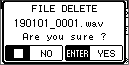
FILE DELETE
A message appears to confirm that you want to delete the file.
Press the ENTER/MARK button to delete the file or press the [] button to cancel deletion.
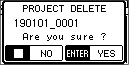
PROJECT DELETE
A pop-up message appears confirming that you want to erase the project containing the selected file.
Press the ENTER/MARK button for each project to erase. Press the [] button to cancel deletion.
NOTE
This deletes all the files in the selected project.
6-5.Folder operations
Select (highlight) the desired folder on the Browse Screen and press the QUICK button to open the following pop-up window.
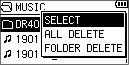
Use the + and − buttons to select the desired item, and press the ENTER/MARK button to confirm.
SELECT
Returns to the Home Screen and selects the first file in the folder. Regardless of the previous setting, the playback area is set to FOLDER, and this folder becomes the new playback area. When recording, files are created in this folder.
ALL DELETE
A pop-up message appears to confirm that you want to delete all the files in the selected folder at once.
Press the ENTER/MARK button to delete the file or press the [] button to cancel deletion.
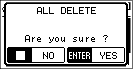
NOTE
You cannot erase read-only files and files that are not recognized by this unit.
FOLDER DELETE
A pop-up message appears to confirm that you want to delete the selected folder.
Press the ENTER/MARK button to delete the file or press the [] button to cancel deletion.
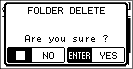
NOTE
Folders than contain read-only files or files that are not recognized by this unit cannot be deleted.
Creating a new folder
1.Use the + and − buttons to select NEW FOLDER, which appears at the bottom of each folder.
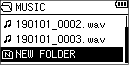
2.Press the ENTER/MARK or button.
A pop-up message to confirm creation of a new folder will be shown.
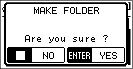
3.Press the ENTER/MARK button to create a folder.
Press the [] button to cancel creation.
The newly created folder becomes the current folder (currently selected folder), and recorded files will be saved in this folder.
If the playback area has been set to FOLDER, this folder becomes the playback area.
NOTE
Subfolders can be created in the MUSIC folder. This unit supports a maximum of two levels of subfolders.
Example: MUSIC / FOLDER_0000 / FOLDER_0001
|
¥ (root folder)
|
|
|
|
MUSIC
|
|
|
|
|
|
|
|
|
FOLDER_0000 (1st level)
|
|
|
|
|
|
|
|
|
|
|
|
|
FOLDER_0001 (2nd level)
|
|
|
|
|
|
|
|
|
|
|
|
|
|
|
|
|
 TASCAM_0001-1.WAV TASCAM_0001-1.WAV
|
|
|
|
|
|
|
|
|
|
|
|
|
|
|
|
|
|
|
...
|
|
|
|
|
|
|
|
|
|
|
|
|
|
|
|
|
|
|
...
|
|
|
|
|
|
|
|
|
|
|
|
|
|
|
|
|
|
|
...
|
|
|
|
|
|
|
|
|
|
|
|
|
|
|
|
|
TASCAM_0002-1.WAV
|
|
|
|
|
|
|
|
|
|
|
|
|
|
|
...
|
|
|
|
|
|
|
|
|
|
|
|
|
|
|
...
|
|
|
|
|
|
|
|
|
|
|
|
|
|
|
...
|
|
|
|
|
|
|
|
|
|
|
|
|
|
|
FOLDER_0002 (2nd level)
|
|
|
|
|
|
|
|
|
|
|
|
|
|
|
...
|
|
|
|
|
|
|
|
|
|
|
|
|
|
|
...
|
|
|
|
|
|
|
|
|
|
|
|
|
|
|
...
|
|
|
|
|
|
|
|
|
|
|
|
|
TASCAM_0003-1.WAV
|
|
|
|
|
|
|
|
|
|
|
...
|
|
|
|
|
|
|
|
|
|
|
...
|
|
|
|
|
|
|
|
|
|
|
...
|
|
|
|
|
|
|
|
|
|
|
 FOLDER_0003 (1st level) FOLDER_0003 (1st level)
|
|
|
|
|
|
|
|
|
|
|
...
|
|
|
|
|
|
|
|
|
|
|
...
|
|
|
|
|
|
|
|
|
|
|
...
|
|
|
|
|
|
Use the Browse Screen to select files for playback.
7-1.Playing files
Selecting files for playback
Select the desired file for playback on the Browse Screen. (6. File and folder operations)
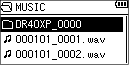
After selecting a file, the and buttons can also be used to switch (skip) files.
The track name, file number and other file information for the playback file appear on the display.
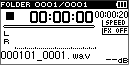
NOTE
Files in the playback area can be played.
See "7-5. Setting the playback area (AREA)" for playback range setting.
Starting playback
With the desired playback file selected, press the button to start playback.
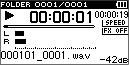
Stopping playback
During playback, press the [] button to pause playback.
Press the button again to restart playback from that position.
When paused, press the [] button to return to the beginning of the file and stop.
TIP
The playback position is retained when the power is turned off so playback can resume from that position next time. (Resuming is not possible if the microSD card is changed or formatted.)
7-2.Searching backward and forward
When the Home Screen is open and a file is playing back or stopped, press and hold the or button to search the playback file backward or forward.
When searching backward and forward, the audio is played back with gaps so it will sound like it is skipping.
7-3.Adjusting the playback volume
The volume of output through the playback monitoring speaker or the /LINE OUT connector can be adjusted using the + and − buttons when the Home Screen is open.
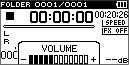
7-4.Playback solo monitoring function
When playing files recorded in 4-channel recording mode, press and hold the 1/2 or 3/4 button to monitor only the selected playback sound.
Using the solo monitoring function for playback sounds allows them to be checked without being affected by other playback sounds.
|
1/2 button
|
Channels 1/2
|
|
3/4 button
|
Channels 3/4
|
7-5.Setting the playback area (AREA)
Set the playback area for repeat and ordinary playback on the PLAY SETTING Screen.
1.Press the MENU button to open the MENU Screen.
2.Use the + and − buttons to select the PLAY SETTING item, and press the ENTER/MARK or button.
This opens the PLAY SETTING Screen.
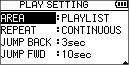
3.Use the + and − buttons to select the AREA item, and press the ENTER/MARK or button.
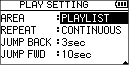
4.Use the + and − buttons to set the playback area.
|
Options
|
|
|
ALL FILES
|
Set the playback area as all files in the Music Folder on the microSD card.
|
|
FOLDER
(default)
|
Set the playback area as all the files in the currently selected folder.
|
|
PLAYLIST
|
Set the playback area as the files in the playlist. (7-8. Using the playlist)
If there is no playlist, a pop-up message will appear.
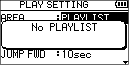
|
5.After completing the setting, press the [] button to return to the Home Screen.
The current playback area setting appears in the upper left of the Home Screen.
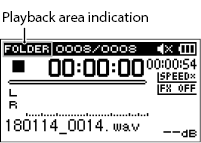
|
Indicator
|
Status
|
|
|
All files in the MUSIC folder
|
|
|
All files in the selected folder
|
|
|
All files added to the playlist
|
7-6.Selecting the playback area folder (1)
Regardless of the current playback area, if you select a folder on the Browse Screen, the playback area changes to the selected folder.
1.Press the MENU button to open the MENU Screen.
2.Use the + and − buttons to select the BROWSE item, and press the ENTER/MARK or button.
The Browse Screen will open.
The content of the folder that contains the file selected on the Home Screen is displayed.
3.Use the and buttons to move between levels, and use the + and − buttons to select a folder. Then, press the QUICK button.
A pop-up window appears.
4.Use the + and − buttons to select SELECT, and press the ENTER/MARK button.
The Home Screen reopens with the first file in the folder selected, and the unit is stopped.
Regardless of the previous setting, the playback area is set to FOLDER, and this folder becomes the new playback area.
This folder becomes the current folder, and new recorded files will be saved in this folder.
7-7.Selecting the playback area folder (2)
When the playback area is set to FOLDER, if you select a file on the Browse Screen, the folder that contains the selected file becomes the playback area.
1.Press the MENU button to open the MENU Screen.
2.Use the + and − buttons to select the BROWSE item, and press the ENTER/MARK or button.
The Browse Screen will open.
The content of the folder that contains the file selected on the Home Screen is displayed.
3.Use the and buttons to move between levels, and use the + and − buttons to select a folder. Then, press the button.
4.Select the desired file for playback, and press the ENTER/MARK or button.
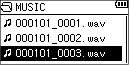
The Home Screen reopens, and the selected track starts playing.
This folder becomes the current folder, and new recorded files will be saved in this folder.
In addition, the folder that contains this file becomes the playback area regardless of the playback area folder set previously.
7-8.Using the playlist
You can make a list of files for playback (playlist).
On the PLAY SETTING Screen if PLAYLIST is selected for the AREA item, files in the playlist can be played back.
Adding files to the playlist
1.Press the MENU button to open the MENU Screen.
2.Use the + and − buttons to select the BROWSE item, and press the ENTER/MARK or button.
The Browse Screen will open.
3.Use the + and − buttons to select the file you want to add to the playlist, and press the QUICK button.
A pop-up window appears.
4.Use the + or − button to select ADD PLAYLIST.
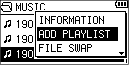
5.Press the ENTER/MARK button.
The selected file is added to the playlist and the pop-up menu closes.
6.Repeat steps 3–5 as necessary. The files are numbered in the order that they are added.
Editing the playlist
The playlist that has been made is shown on the PLAYLIST Screen.
You can also use this screen to play tracks and to edit the playlist.
1.Press the MENU button to open the MENU Screen.
2.Use the + and − buttons to select the BROWSE item, and press the ENTER/MARK or button.
The Browse Screen will open.
3.Use the button to move to the top level.
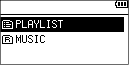
4.Use the + and − buttons to select the PLAYLIST item, and press the button.
This opens the PLAYLIST Screen.
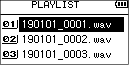
5.Use the + and − buttons to select the file to edit and press the QUICK button.
A pop-up window appears.
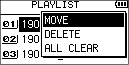
6.Use the + and − button to select the desired item, and press the ENTER/MARK button to conduct the following operations.
MOVE
Select this to change the order of files in the playlist. In addition to the file name, the file number also appears highlighted in inverse.
|
1)
|
Use the + and − buttons to move the selected track to a different position in the playlist.
|
|
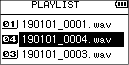
|
|
In the above example, the 4th file has been moved to the 3rd file position.
|
|
2)
|
Press the ENTER/MARK button.
|
|
This completes movement and reopens the PLAYLIST Screen.
|
DELETE
This removes the file from the playlist. Files are removed from the playlist, but they are not deleted from the microSD card.
ALL CLEAR
This removes all files from the playlist.
NOTE
Files are removed from the playlist, but they are not deleted from the microSD card.
7-9.Repeat playback (REPEAT)
You can repeatedly play one file or multiple files within a designated area.
1.Press the MENU button to open the MENU Screen.
2.Use the + and − buttons to select the PLAY SETTING item, and press the ENTER/MARK or button.
This opens the PLAY SETTING Screen.
3.Use the + and − buttons to select the REPEAT item, and press the ENTER/MARK or button.
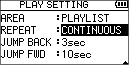
4.Use the + or − button to select a repeat mode.
|
Options
|
|
|
CONTINUOUS
(default)
|
All files in the playback area are played in sequence one time. (This setting is the ordinary playback mode.) Repeat playback will not occur.
|
|
SINGLE
|
Only one file is played back in this mode. Repeat playback will not occur.
The  icon appears on the Home Screen. icon appears on the Home Screen.
|
|
1 REPEAT
|
The current file is played repeatedly.
The  icon appears on the Home Screen. icon appears on the Home Screen.
|
|
ALL REPEAT
|
All files in the selected playback area are played back repeatedly.
The icon appears on the Home Screen.
|
NOTE
If you start loop playback, the repeat operation automatically switches to CONTINUOUS if it is in SINGLE, 1 REPEAT, or ALL REPEAT mode.
5.After completing the setting, press the [] button to return to the Home Screen.
The Home Screen will reopen, and playback will start.
7-10.Special playback control functions
This unit can play a selected section of a file repeatedly or change the playback speed without changing the pitch.
Use the Browse Screen to select the file for playback. The and buttons can also be used for selection.
Press the PB CONT button to open the Playback Control Screen.
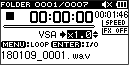
Press the PB CONT button again or press the [] button to return to the Home Screen.
NOTE
File selection is not possible on the Playback Control Screen.
These settings will be retained even if the Home Screen is reopened, but selecting a different file will cancel the settings.
Loop playback of a selection
With this function, you can continuously repeat (loop) the playback of a selection that you make.
When loop playback is started, the repeat mode will automatically switch to CONTINUOUS.
1.After selecting a file for playback, press the PB CONT button when playback is stopped or paused.
The Playback Control Screen will open.
2.Press the button to start playback, and press the ENTER/MARK button at the start of the desired loop playback section.
This position is set as the IN (start) point.

3.Press the ENTER/MARK button at the end point of the section that you want to play repeatedly.
This position is set as the out (end) point, and loop playback of the section between the in and out points starts.

During loop playback the indicator appears.
4.Press the PB CONT button to return to the Home Screen while maintaining the in (start) and out (end) points and loop settings.
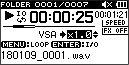
NOTE
An “I/O Too Short” pop-up message appears if the section between the in and out points is too short. The section should be 1 second or longer.
Press the ENTER/MARK button again to clear the in and out points.
To stop loop playback, press the MENU button when the Playback Control Screen is open. Press the MENU button again to start loop playback between the set in and out points.
In (start) and out (end) points cannot be set in different files.
Setting an in point in a different file will clear the previous in and out point settings.
Accurate assignment of in (start) and out (end) is not always possible for variable bit rate (VBR) MP3 files.
Changing the playback speed (VSA)
This unit has a built-in variable speed audition (VSA) function to change the playback speed without changing its pitch.
1.After selecting a file for playback, press the PB CONT button when playback is stopped or paused.
The Playback Control Screen will open.
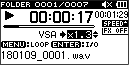
2.Use the + and − buttons to change the playback speed.
The VSA function can change the playback speed in the range from 0.5 (50%) to 2.0 (200%) times (in 0.1 increments) the normal speed.
3.Press the PB CONT button to return to the Home Screen while maintaining the set playback speed.
The or icon appears if the playback speed is set to a value larger or smaller than 1.0, respectively.
NOTE
The VSA function cannot be used with files that have a sampling rate of 96 kHz.
7-11.Setting the playback equalizer
Different sound equalization settings can be chosen to enhance listenability (PLAY EQ).
Use the PLAY EQ item on the I/O SETTING Screen or the Quick menu to set the playback equalization.
1.Press the MENU button to open the MENU Screen.
2.Use the + and − buttons to select the I/O SETTING item, and press the ENTER/MARK or button.
The I/O SETTING Screen will open.
3.Use the + and − buttons to select the PLAY EQ item, and press the ENTER/MARK or button.
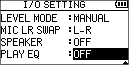
4.Use the + and − buttons to set the playback equalization.
TREBLE (high), MIDDLE and BASS frequencies can be adjusted, with + and − used to raise or lower the levels of those frequency bands.
|
Options
|
|
OFF (default)
|
|
TREBLE+
|
|
TREBLE−
|
|
MIDDLE+
|
|
MIDDLE−
|
|
BASS+
|
|
BASS−
|
5.After completing the setting, press the [] button to return to the Home Screen.
NOTE
This function is also available in the Quick Menu.
(8. Quick Operations)
7-12.Using the jump function
During playback, the playback position can jump backward or forward from the current position by a set amount of time.
The same playback status will be retained after jumping.
The jump forward function can only be used during dictation playback mode, overwrite recording mode and with the file division function. Operation differs in these modes.
Operation when not using dictation playback mode, overwrite recording mode or the file division function
Jump back
During playback, press the button to jump back from the current position by the set JUMP BACK time.
Operation when using dictation playback mode, overwrite recording mode or the file division function
Jump back
During playback, press the button to jump back from the current position by the set JUMP BACK time.
Jump forward
During playback, press the button to jump forward from the current position by the set JUMP FWD time.
NOTE
When jumping back, if the amount of time from the current playback position to the beginning of the file is less than the set JUMP BACK time, playback will jump to the beginning of the file.
When jumping forward, if the amount of time from the current playback position to the end of the file is less than the set JUMP FWD time, playback will jump to the end of the file and pause.
Setting the jump back/forward time
1.Press the MENU button to open the MENU Screen.
2.Use the + and − buttons to select the PLAY SETTING item, and press the ENTER/MARK or button.
This opens the PLAY SETTING Screen.
3.Use the + and − buttons to select the JUMP BACK or JUMP FWD item, and press the ENTER/MARK or button.
|
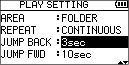
|
|
Jump Back Time Setting Screen
|
|
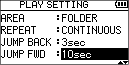
|
|
Jump Forward Time Setting Screen
|
4.Use the + and − buttons to set the jump time.
|
Options
|
|
JUMP BACK
|
JUMP FWD
|
|
OFF
|
OFF
|
|
1sec
|
1sec
|
|
3sec (default)
|
3sec
|
|
5sec
|
5sec
|
|
10sec
|
10sec (default)
|
|
30sec
|
30sec
|
|
1min
|
1min
|
|
5min
|
5min
|
|
10min
|
10min
|
5.After completing the setting, press the [] button to return to the Home Screen.
NOTE
This function is also available in the Quick Menu.
(8. Quick Operations)
8-1.Quick Menu structure
Press the QUICK button to open the Quick Menu Screen.
The Quick Menu items are as follows.
|
Screen
|
Status
|
Menu item
|
Action
|
Reference
|
|
BROWSE
|
When file selected
|
FILE INFORMATION
|
Show file information for the selected file.
|
6-4. File operations
|
|
ADD PLAYLIST
|
Add the selected file to the playlist.
|
|
FILE SWAP
|
Swap recorded files in 4-channel recording and overdub recording (separate) modes.
|
|
FILE DELETE
|
Delete the selected file.
|
|
PROJECT DELETE
|
Delete the project that includes the selected file.
|
|
When folder selected
|
SELECT
|
Select the first file in the selected folder.
|
6-5. Folder operations
|
|
ALL DELETE
|
Deletes all files in the selected folder.
|
|
FOLDER DELETE
|
Delete the selected folder and all files in it.
|
*After undoing, the UNDO menu item is replaced with REDO.
8-2.Quick Menu
Press the QUICK button to open the Quick Menu Screen. Depending on the state of the unit, the content shown might differ or the Quick Menu might not open.
Press the QUICK or [] button to close the Quick Menu.
|
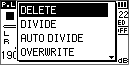
|
|
Quick Menu when playback paused
|
8-3.Deleting files
The currently selected file can be deleted without using the Browse Screen.
1.Use the and buttons to select the file to delete.
2.While the Home Screen is open when stopped, press the QUICK button to open the Quick Menu.
3.Use the + or − button to select DELETE.
4.Press the ENTER/MARK button. A confirmation screen for file deletion appears.
5.Press the ENTER/MARK button to delete that file.
Press the [] button to cancel deletion.
8-4.Dividing the selected file
A recorded file can be divided into two at a specified position.
1.Select the file to be divided using the or button or the Browse Screen.
2.While the Home Screen is open when stopped, press the QUICK button to open the Quick Menu.
3.Use the + or − button to select the DIVIDE item, and press the ENTER/MARK button.
The DIVIDE Screen will open.
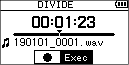
4.Use the + and − buttons to determine the position for file division, and press the REC [] button.
The following pop-up window appears.
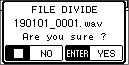
5.Press the ENTER/MARK button to divide that file.
Pressing the [] button will reopen the DIVIDE Screen without dividing the file.
NOTE
MP3 files cannot be divided.
If the microSD card has insufficient open space, division might not be possible.
Division is not possible if the file name would become more than 200 characters long.
Division is not possible if the name that would be given to a new file is the same as that of an existing file.
If a project that has virtual files is divided, those files will also be divided at the same time.
When the DIVIDE Screen is open, the button can be pressed to set the divide position while playing the file.
When the DIVIDE Screen is open, press the button to pause/resume playback.
Press the button to move to the beginning of the file. Press the button to move to the end of the file.
Use the + and − buttons to adjust the position for file division. Press and hold them to move continuously.
After dividing a file, two new files with “a” and “b” added to the original file name are created.
Example in 4-channel recording mode
File names before division
260101_0003S12.wav
260101_0003S34.wav
File names after division
260101_0003aS12.wav (part before division point)
260101_0003aS34.wav (part before division point)
260101_0003bS12.wav (part after division point)
260101_0003bS34.wav (part after division point)
TIP
Add marks during recording or playback at positions where you want to divide files. (9. Mark functions)
During normal playback mode, after using the [] button to pause, advance to the DIVIDE Screen where the division point can be accurately determined while listening to the sound.
8-5.Dividing the selected file automatically at marks
This function can automatically divide a file into multiple files at the positions of marks added during recording and playback.
1.Select the file to be divided using the or button or the Browse Screen.
2.While the Home Screen is open when stopped, press the QUICK button to open the Quick Menu.
3.Use the + or − button to select the AUTO DIVIDE item, and press the ENTER/MARK button.
The AUTO DIVIDE Screen will open.
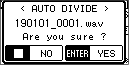
4.Press the ENTER/MARK button to divide the file and return to the Home Screen.
Pressing the [] button will return to the Home Screen without dividing.
NOTE
MP3 files cannot be divided.
Division will not be possible if the time between any marks is less than two seconds.
If the microSD card has insufficient open space, division might not be possible.
Division is not possible if the file name would become more than 200 characters long.
Division is not possible if the name that would be given to a new file is the same as the name of an existing file.
If you divide a project that has virtual files, those files will also be divided simultaneously.
After dividing a file, new files with "_AA" added to the end of the original file name are created. (AA is a number.)
Example in 4-channel recording mode
File names before division
260101_0003S56.wav
260101_0003S78.wav
File names after division
260101_0003S56_01.wav (part before division point)
260101_0003S78_01.wav (part before division point)
260101_0003S56_02.wav (part after division point)
260101_0003S78_02.wav (part after division point)
TIP
Add marks during recording or playback at positions where you want to divide files. (9. Mark functions)
8-6.Overwrite recording mode
In overwrite recording mode, a recorded file can be overwritten from a desired position.
In overwrite recording mode, the file skip function is disabled to prevent accidentally moving to the previous or next file.
Select the file before enabling overwrite recording mode.
Overwrite recording
1.On the Browse Screen, select the file to overwrite record.
2.When stopped and the Playback Screen is open, press the QUICK button to open the Quick Menu.
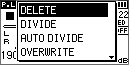
3.Use the + or − button to select the OVERWRITE item, and press the ENTER/MARK button.
This will activate overwrite recording mode.
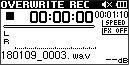
4.Use the , and buttons to stop at the position where overwrite recording should start.
At this time, using the or button will jump. (7-12. Using the jump function)
5.Press the REC [] button.
The following pop-up window appears.
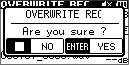
6.Press the ENTER/MARK button to close the pop-up window and enable overwrite recording.
7.Press the REC [] button again to start overwrite recording.
8.Press the [] button to stop overwrite recording.
After stopping recording, the unit will return to the overwrite recording starting point and stop.
9.Play the recorded file to check it.
NOTE
The jump times can be set from the Quick Menu when stopped.
To return to the starting point of overwrite recording, select TO EDIT POINT from the Quick menu.
Undoing and redoing overwrite recording
UNDO in the Quick Menu can be used to undo overwrite recording to return to the immediately previous state.
In the state after undoing, the UNDO item is replaced with REDO in the Quick Menu. Redoing reverts to the overwritten state.
|
ATTENTION
Overwrite recording can be done as many times as you like, but only the file before the most recent overwritten recording will be retained. Overwriting again will delete the earlier file.
|
NOTE
Overwrite recording does not change the file name.
Ending overwrite recording mode
When stopped and the Playback Screen is open, use the Quick Menu to select MODE EXIT and press the ENTER/MARK button.
This exits OVERWRITE mode.
|
ATTENTION
Ending overwrite recording mode will delete UNDO (REDO) files.
|
8-7.Dictation play mode
The DICTATION PLAY mode allows you to search for the parts of the selected file that you want to hear during playback, making it useful for transcribing meeting minutes, for example.
In dictation play mode, the file skip function is disabled to prevent accidentally moving to the previous or next file.
Select the file before enabling DICTATION PLAY Mode.
Transcribing recorded files
1.On the Browse Screen, select the file to transcribe.
2.When stopped and the Playback Screen is open, press the QUICK button to open the Quick Menu.
3.Use the + or − button to select DICTATION PLAY, and press the ENTER/MARK button.
This will activate DICTATION PLAY mode.
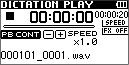
4.Use the , and buttons to play the part to be transcribed.
At this time, using the or button will jump. (7-12. Using the jump function)
NOTE
This playback mode is suitable for transcribing but is not an automatic transcription function.
Recording is not possible in DICTATION PLAY mode.
Menu operations are not possible in DICTATION PLAY mode.
To use a menu, exit DICTATION PLAY mode temporarily.
The jump times can be set from the Quick Menu when stopped.
Adjusting playback speed
The playback speed can be adjusted to make the sound playing back easier to follow.
Press the PB CONT button to enable playback speed adjustment.
Use the + and − buttons to change the playback speed.
The playback speed can be set in a range from 0.5 (50%) to 2.0 (200%) times the normal speed (in 0.1 increments).
The playback speed can also be adjusted during playback.
Enhancing playback sound
Using the Quick menu, the playback sound can be made easier to listen to.
VOICE EQ
Ending dictation play mode
When stopped and the Playback Screen is open, use the Quick Menu to select MODE EXIT and press the ENTER/MARK button.
This exits DICTATION PLAY mode.
8-8.Mixdown
This function combines three or four channels (a file each for channels 1/2 and channels 3/4) into one two-channel L/R file.
At this time, the effect level (SEND), left-right balance (PAN or BAL when mono) and volume balance (LVL) can be adjusted for each channel freely on the Mixer Screen (11. Mixer).
1.Select the file to be mixed down using the or button or the Browse Screen.
2.When stopped and the Playback Screen is open, press the QUICK button to open the Quick Menu.
3.Use the + or − button to select the MIXDOWN item, and press the ENTER/MARK button.
The MIXDOWN Screen will open.
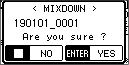
4.Press the ENTER/MARK button to start the mixdown.
After mixdown completes, the Playback Screen opens with the mixed down file ready to play. (The project name number is the final number before mixdown increased by one.)
In this state, you can press the button to start playback of the mixed-down file.
NOTE
If the playback file is mono, the file created will also be mono.
When mixing down mono files, set the BAL knob on the Mixer Screen to L12.
9-1.Adding marks manually
When playing, recording or in recording standby, press the ENTER/MARK button to add a mark at any point.
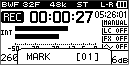
NOTE
Mark information is stored in the file with numbers between 01–99. The maximum number of marks in a file is 99.
As the unit is compatible with the BWF format for WAV files, marks added to a WAV file during recording are stored in the file. Marks stored in the file are available when playing back the file using a BWF compliant software, etc.
9-2.Adding marks automatically while recording
This function allows the unit to add marks automatically using AUTO REC.
On the REC SETTING Screen, set the AUTO REC section MODE item to MARK.
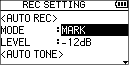
See "5-13. Automatically starting recording (AUTO REC)".
9-3.Moving between marks
When stopped, paused or playing back, press the or button while pressing the ENTER/MARK button to move between marks set in the selected file.
You can use this function like an index for cueing.
NOTE
You cannot move to a cue mark of a different file.
9-4.Deleting marks
When stopped or paused, move to a mark. Then, press the ENTER/MARK button to delete that mark.
This unit has built-in effects.
They can also be applied to the output signal during playback.
The icon appears as light letters on a dark background. ()
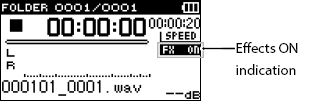
10-1.Setting the effect
1.Press the MENU button to open the MENU Screen.
2.Use the + and − buttons to select the OTHERS item, and press the ENTER/MARK or button.
The OTHERS Screen opens.
3.Use the + and − buttons to select the EFFECT item, and press the ENTER/MARK or button.
The EFFECT Screen will open.
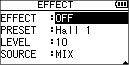
4.Use the and buttons along with the + and − buttons to set each item.
EFFECT
PRESET
|
Options
|
|
|
Hall 1
(default)
|
This is a bright reverb modeled after a large hall-like space.
|
|
Hall 2
|
This is a warm reverb modeled after a large hall-like space.
|
|
Room
|
This reverb is modeled on a small indoor space.
|
|
Studio
|
This reverb is modeled on a studio-like space.
|
|
Plate 1
|
This is a bright plate reverb.
|
|
Plate 2
|
This is a warm plate reverb.
|
LEVEL
This adjusts the reverb output level. The setting range is 0–20. (Default: 10)
SOURCE
This selects the sound source to which reverb is applied.
|
Options
|
|
|
MIX
(default)
|
Apply the effect to the output sound when in overdub recording (mix) mode or mixdown recording
|
|
INT MIC
|
Apply the effect to signals input through the built-in mics
|
|
EXT INPUT
|
Apply the effect to signals input through external mics or equipment
|
NOTE
When MIX is selected, you can set the level (SEND) of each signal sent to the effect on the Mixer Screen. (11. Mixer)
When in USB audio interface mode, the options will become as follows.
|
Options
|
|
|
MONITOR
(default)
|
Apply the effect to output sounds
|
|
INPUT
|
Apply the effect to input sounds
|
5.After completing the setting, press the [] button to return to the Home Screen.
NOTE
When the sampling frequency is set to 96 kHz, or a WAV file with a sampling frequency of 96 kHz is played, the built-in effects will not work.
However, you can still set the built-in effects.
This recorder has a mixer function that allows you to set the built-in effect (10-1. Setting the effect), stereo balance and volume level for each channel.
During mixdown and playback, you can make fine adjustments to the recorded sound by using this.
11-1.Setting the mixer
1.From the Playback Screen, press the MIXER button to open the Mixer Screen.
|
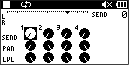
|
|
During 4-channel file playback
|
|
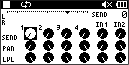
|
|
In overdub recording (mix) mode
|
|
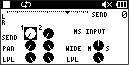
|
|
During 4-channel file playback
(MS decoding of channels 3/4)
|
2.Use the and buttons along with the + and − buttons to select items to adjust. Each column is a channel and each row is a setting type.
3.Press the ENTER/MARK button to open the setting item and value in a pop-up window at the top right.
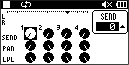
4.Use the + and − buttons to change the setting.
|
Item
|
Range
|
Function
|
|
SEND
|
0–100
|
Adjusts the send level of the selected effect
(0 (min.)–100 (max.))
|
|
PAN/BAL
|
L12–C–R12
|
Adjusts left-right balance
(L12 (left) – C (center) – R12 (right))
|
|
LVL
|
0–100
|
Volume level
(0 (min.)–100 (max.))
|
5.Press the ENTER/MARK button to return to the previous location where the next setting to adjust can be selected.
NOTE
When the Mixer Screen is open, the selected file will be played repeatedly. To change the file, return to the Playback Screen and do it there.
11-2.Using the mid-side decoding function
Audio recorded in mid-side (MS) format using mid-side mics can be decoded (converted to stereo) using different methods according to the application.
Depending on recording and monitoring objectives, optimal audio processing is possible by selecting suitable settings.
Decoding while recording
Connect a mid-side mic.
See "5-10. Connecting mid-side mics" for details about connecting mid-side mics.
1.On the REC MODE Screen, set the REC MODE item to STEREO or 4CH.
2.Select EXT IN L/R for the INPUT item. (This cannot be selected when in 4-channel recording mode.)
3.Select the MS DECODE item.
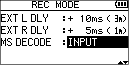
|
Options
|
|
|
OFF (default)
|
|
|
INPUT
|
The input sounds will be decoded and the stereo audio after decoding will be recorded. This eliminates editing work and is useful when recording stereo audio that can be used soon is desired.
|
|
MONITOR
|
Mid-side signals will be recorded as is and only the monitoring sound will be decoded. This is useful for recording with the intent to decode during editing, for example, when adjusting the stereo width is desired.
|
4.Conduct recording operations to record according to the MS DECODE mode.
Decoding during playback
Select a file that was recorded by mid-side mics with MS DECODE set to OFF or MONITOR.
1.When the Playback Screen is open, press the MIXER button to open the Mixer Screen.
2.Press the QUICK button and select MONITOR for the MS DECODE item.
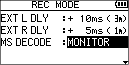
3.Start playback to decode during playback.
Setting the mid-side decoding function
Use the WIDE parameter on the Mixer Screen to adjust the width of the sound.
To decode while recording, open the Mixer Screen during recording standby.
For the MS DECODE item on the Mixer Screen, INPUT will be shown if recording is selected, and MONITOR will be shown if monitor is selected.
|
Item
|
Setting range
|
Operation details
|
|
WIDE
|
0–100
|
Adjusts the width of the sound
|
At 0, mid is 100%. As the number increases, the amount of side signal increases.
This unit has a built-in tuner. By inputting sound from a musical instrument, you can tune it accurately while checking the tuning meter on the display.
12-1.Setting the tuner
1.Press the MENU button to open the MENU Screen.
2.Use the + and − buttons to select the OTHERS item, and press the ENTER/MARK or button to open the OTHERS Screen.
3.Use the + and − buttons to select the MODE item, and press the ENTER/MARK or button.
The Tuner Screen will open.
The Tuner Screen has a CALIB item to set the frequency of A.
Press the button to lower the frequency and the button to raise it.
Setting range: 435Hz – 445Hz (in 1Hz increments)
Default: 440Hz
NOTE
When the Tuner Screen is open, press the ENTER/MARK button to reverse the display orientation.
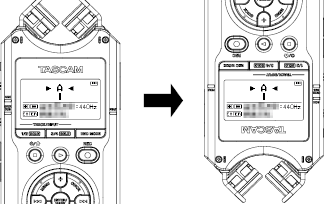
12-2.Tuning
1.With the Tuner Screen open, play a note on the instrument to be tuned.
The closest pitch name will be shown above the center of the meter.
2.Tune the instrument so that the target pitch name appears and the center of the tuner lights.
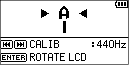
Bars appear to the left or right of center if the sound is lower or higher than the target pitch. The bars increase the more the input pitch differs from the target pitch.
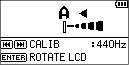
NOTE
The tuner can only be used with the built-in mics.
This unit can be powered with USB bus power by connecting it to a computer using a commercially-available USB cable.
By connecting this unit with a computer or iOS device using a commercially-available USB cable, the unit can also be used as an SD card reader and as a USB audio interface.
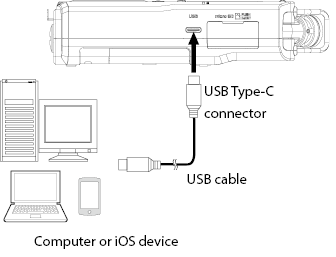
|
ATTENTION
The unit should be connected directly to a computer or iOS device, not through a hub.
|
NOTE
A USB cable is not included with this product. Prepare a USB cable (designed for communication or data transmission) that matches the USB port of the computer or iOS device being used. (USB cables)
A genuine Apple Lightning-USB camera adapter is necessary to connect the unit to iOS devices with Lightning connectors.
13-1.Powering the unit with USB bus power
When the unit is off
1.Use a USB cable to connect the computer and the unit.
2.Turn the unit on.
The USB Screen will open.
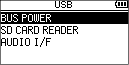
3.Use the + or − button to select the BUS POWER item, and press the ENTER/MARK button.
Power will be supplied from the USB port, and the Home Screen will open.
When the unit is on
While the unit is operating, if it is connected to a computer with a USB cable, the unit will be powered from its USB port. (USB bus power is prioritized.)
NOTE
The same thing will also happen when using an AC adapter.
This unit does not have a battery charging function.
13-2.Using as an SD card reader
1.Use a USB cable to connect this unit to a computer or an iOS device.
2.Turn the unit on.
The USB Screen will open.
NOTE
If this unit is connected while its power is on, the USB Screen can be opened by pressing the MENU button to open the MENU Screen and selecting the USB item.
3.Use the + or − button to select the SD CARD READER item, and press the ENTER/MARK button.
The SD CARD READER Screen will open.
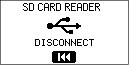
NOTE
After completing file operations, end the USB connection, and press the button on this unit.
4.Open the “DR-40XP” drive on the computer or iOS device.
“MUSIC” and “UTILITY” folders will be shown.
5.Work with the files and folders on the computer or iOS device.
Any audio files from the computer or iOS device can be saved anywhere inside the “MUSIC” folder, and recording files in the “MUSIC” folder can be taken out.
NOTE
See "Recording/playback format" for information about audio files that can be played by this unit.
Subfolders can be created inside the MUSIC folder.
This unit supports a maximum of two levels of subfolders.
Example: MUSIC / DR- 40XP_0000 / DR- 40XP_0001
This unit cannot recognize subfolders and files on the 3rd level or below.
TIP
Since this unit can be set to play only the contents of a specific folder, organizing audio files into folders by genre, artist and other categories can be convenient.
If subfolders and music files are named, those names will appear on the Playback and Browse Screens of this unit.
Ending SD card reader connection
Before disconnecting the unit from the computer or iOS device, use the proper procedures to unmount the unit from it, and press the button.
Disconnect from the computer and return to the Home Screen.
13-3.Using as a USB audio interface
1.Use a USB cable to connect this unit to a computer or an iOS device.
2.Turn the unit on.
The USB Screen will open.
NOTE
If this unit is connected while its power is on, the USB Screen can be opened by pressing the MENU button to open the MENU Screen and selecting the USB item.
3.Use the + or − button to select the AUDIO I/F item, and press the ENTER/MARK button.
The AUDIO I/F Screen will open.
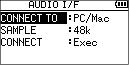
4.When the AUDIO I/F Screen is open, use the + or − button to select the CONNECT TO item, and press the ENTER/MARK button.
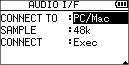
5.Use the + and − buttons to set the type of connected device.
|
Options
|
|
PC/Mac (default)
|
|
iOS
|
NOTE
To connect an iOS device, select iOS for the CONNECT TO item.
Using this setting, the unit will use its own power supply and will not draw power from the iOS device.
6.When the AUDIO I/F Screen is open, use the + or − button to select the CONNECT item, and press the ENTER/MARK button.
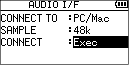
7.Press the ENTER/MARK button to enable audio interface mode and return to the Home Screen.
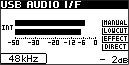
NOTE
With Windows, an ASIO driver for the DR-X series can be used. Check the page for this product on the TASCAM website for details.
https://tascam.jp/int/product/dr-40xp/support
With a Mac, the standard OS driver will be used, so installation of special software is not necessary.
Functions when in USB audio interface mode
When in audio interface mode, press the MENU button to access the following functions.
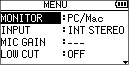
MONITOR
Select the audio output from the headphone output when using this unit to monitor audio.
|
Options
|
|
|
PC/Mac
(default)
|
Audio signals from the PC/Mac will be output.
|
|
DIRECT
|
Audio signals input into this unit and from the PC/Mac will be mixed and output.
|
TIP
By using the direct function monitoring the input sound without latency is possible.
When using the direct function, however, the direct input sound and the same signal returned from the PC/Mac might both be heard.
In cases like this, turn off monitoring of the sound input from this unit on the PC/Mac.
INPUT
Select the input sound.
|
Options
|
|
INT MONO
|
|
INT STEREO
|
|
EXT IN
|
LOW CUT
Set the cutoff frequency of the low-cut filter during input.
|
Options
|
|
OFF (default)
|
|
40Hz
|
|
80Hz
|
|
120Hz
|
|
220Hz
|
EFFECT
Open the effect settings screen. (10-1. Setting the effect)
DISCONNECT
End the USB audio interface mode connection.
Ending USB audio interface mode
To end connection in USB audio interface mode, press the MENU button and select the DISCONNECT item.
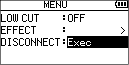
14. Settings and Information
14-1.Viewing information (INFORMATION)
Use the INFORMATION Screen to view various types of information about this unit.
Follow the steps below to display the INFORMATION Screen.
1.Press the MENU button to open the MENU Screen.
2.Use the + and − buttons to select the OTHERS item, and press the ENTER/MARK or button.
The OTHERS Screen opens.
3.Use the + and − buttons to select the INFORMATION item, and press the ENTER/MARK or button.
The INFORMATION Screen contains the following pages.
Use the + and − buttons to move through the pages.
File information page (FILE)
Shows information about the currently loaded file.
Card information page (CARD)
Shows the use status of the currently installed microSD card
System information page (SYSTEM)
Shows the unit’s system setting information and firmware version.
File information page (FILE)
The FILE page shows information about the currently loaded audio file.
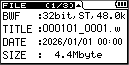
WAV, BWF or MP3
This shows the audio file format.
For WAV and BWF files, bit length, stereo/mono, and sampling rate (Hz) are shown.
For MP3 files, the bit rate (kbps), CBR/VBR, and sampling rate (Hz) are shown. (CBR: Constant Bit Rate, VBR: Variable Bit Rate)
TITLE
Shows the file name.
DATE
Date of file creation
SIZE
File size
Card information page (CARD)
The CARD page shows the use status of the currently inserted microSD card.
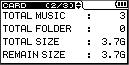
TOTAL MUSIC
Shows the number of playable files in the MUSIC folder.
TOTAL FOLDER
Shows the total number of folders in the MUSIC folder.
TOTAL SIZE
Shows the total microSD card capacity.
REMAIN SIZE/USED SIZE
This shows the amounts of open and used capacity on the microSD card.
Press the or button to switch between REMAIN SIZE and USED SIZE.
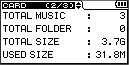
System information page (SYSTEM)
The SYSTEM page shows information about the unit’s system settings and firmware version.
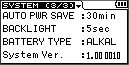
AUTO PWR SAVE
This shows the setting of the automatic power saving function.
BACKLIGHT
This shows the backlight time setting.
BATTERY TYPE
This shows the setting for the battery type used.
System Ver.
This shows the system firmware version.
14-2.System Settings (SYSTEM)
Use the SYSTEM Screen to change various settings to optimize the device for the use environment and other conditions, as well as to initialize the unit and format microSD cards, for example.
Follow the steps below to open the SYSTEM Screen.
1.Press the MENU button to open the MENU Screen.
2.Use the + and − buttons to select the SYSTEM item, and press the ENTER/MARK or button.
This opens the SYSTEM Screen.
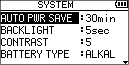
The following settings can be made for the items on the SYSTEM Screen.
Use the and buttons along with the + and − buttons to set each item.
Setting the automatic power saving function
Use the AUTO PWR SAVE item to set the time before the unit automatically turns off after the last operation when powered by batteries.
The unit will not turn off automatically during recording or playback.
|
Options
|
|
|
OFF
|
Will not turn off automatically
|
|
3min
|
|
|
5min
|
|
|
10min
|
|
|
30min (default)
|
|
Setting the backlight
Use the BACKLIGHT item to set the time until the backlight automatically turns off after the last operation when powered by batteries.
|
Options
|
|
|
OFF
|
Unlit
|
|
5sec (default)
|
|
|
10sec
|
|
|
15sec
|
|
|
30sec
|
|
|
ALWAYS
|
Always lit
|
Adjusting the display contrast
Use CONTRAST to adjust the display contrast.
|
Options
|
|
1
|
|
2
|
|
...
|
|
5 (default)
|
|
...
|
|
10
|
|
...
|
|
20
|
Setting the battery type
Use the BATTERY TYPE item to set the battery type. This setting is used to show the amount of remaining battery charge and determine if the unit has enough power for normal operation.
|
Options
|
|
|
ALKAL (default)
|
Alkaline batteries
|
|
Ni-MH
|
Nickel-metal hydride batteries
|
|
LITHIUM
|
Lithium batteries
|
Setting the phantom power voltage
Use the PHANTOM VOLT item to set the voltage of the phantom power supplied when external mics that require it are connected.
|
Options
|
|
+24V
|
|
+48V (default)
|
Setting the language
Use the LANGUAGE item to set the language shown on the display.
1.Use the + and − buttons to select the LANGUAGE item, and press the ENTER/MARK or button.
|
Options
|
|
|
ENG
|
Use English
|
|
日本語
|
Use Japanese
|
|
FRA
|
Use French
|
|
ESP
|
Use Spanish
|
|
DEU
|
Use German
|
|
ITA
|
Use Italian
|
|
POR
|
Use Portuguese
|
|
RUS
|
Use Russian
|
|
中文
|
Use Chinese
|
|
한글
|
Use Korean
|
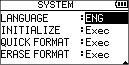
2.Press the ENTER/MARK button to open a confirmation pop-up message.
3.Press the ENTER/MARK button to confirm the language setting.
To cancel language selection, press the [] button.
|
Setting the language if the wrong was set
After pressing the [] button to turn the unit off, while pressing the MENU button, press the [] button again.
The language selection menu will appear, and you will be able to select the language.
|
Restoring the factory settings
Use the INITIALIZE item to restore the various settings of this unit to their initial settings (state when shipped from the factory).
1.Use the + and − buttons to select the INITIALIZE item, and press the ENTER/MARK or button.
Exec will appear highlighted.
2.Press the ENTER/MARK button to open a confirmation pop-up message.
3.Press the ENTER/MARK button to start initialization.
Press [] to cancel initialization.
NOTE
Initializing settings does not delete audio files on the microSD card.
Initializing settings does not change the selected language.
Formatting microSD cards
This unit must format microSD cards before it can use them.
Use the QUICK FORMAT or ERASE FORMAT item to format the microSD card.
Formatting a microSD card erases all data on the card and automatically creates new “MUSIC” and “UTILITY” folders as well as a “dr-1.sys” file.
|
ATTENTION
Before formatting a microSD card, back up any important data on the card to a computer or iOS device.
Formatting a microSD card erases all data on it. Erased data cannot be restored.
When formatting a microSD card, use batteries with sufficient remaining power. Alternatively, the unit should be operating on power supplied by a TASCAM PS-P520U AC adapter (sold separately) or USB bus power supplied from a computer.
If the power turns off during formatting, the formatting might not occur correctly.
|
1.Use the + and − buttons to select the QUICK FORMAT or ERASE FORMAT item and press the ENTER/MARK or button.
Exec will appear highlighted.
2.Press the ENTER/MARK button to open a confirmation pop-up message.
|
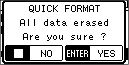
|
|
QUICK FORMAT Screen
|
|
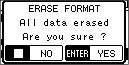
|
|
ERASE FORMAT Screen
|
3.Press the ENTER/MARK button to start formatting the microSD card.
To cancel formatting the microSD card, press the [] button.
NOTE
Using the ERASE FORMAT option might improve writing performance that has decreased due to repeated use. If “Write error REC continue” or “Card slow Check BOF MARK” appears during recording, we recommend using the ERASE FORMAT option.
ERASE FORMAT takes more time than QUICK FORMAT.
14-3.Setting the date and time
The DR-40XP uses its internal clock to record the date and time to the recorded files.
1.Press the MENU button to open the MENU Screen.
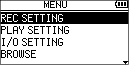
2.Use the + and − buttons to select the OTHERS item, and press the ENTER/MARK or button.
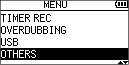
The OTHERS Screen opens.
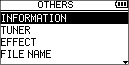
3.Use the + and − buttons to select the DATE/TIME item, and press the ENTER/MARK or button.
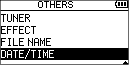
The DATE/TIME Screen opens.
4.Use the and buttons to move the cursor, and use the + and − buttons to change values.
5.Press the ENTER/MARK button to confirm and return to the OTHERS Screen.
NOTE
The unit can automatically add the date and time set here to file names. (14-4. Setting the file name format)
The date and time will be reset if the power is interrupted for a few minutes. When using batteries, we recommend replacing them before they are completely dead.
Whenever the date and time have been reset, the setting screen will open when the power is turned on. Set them again.
14-4.Setting the file name format
You can select the format of names given to files recorded by this unit.
1.Press the MENU button to open the MENU Screen.
2.Use the + and − buttons to select the OTHERS item, and press the ENTER/MARK or button.
The OTHERS Screen opens.
3.Use the + and − buttons to select the FILE NAME item, and press the ENTER/MARK or button.
The FILE NAME Screen will open.
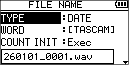
4.Use the and buttons along with the + and − buttons to set each item.
File name format
Set the TYPE item to either WORD or DATE.
|
Options
|
|
|
WORD
|
The 6 characters set for WORD are used for file names.
Example: TASCAM_0001S12.wav
|
|
DATE
|
The date is used for the file name.
Example: 110101_0000.wav
|
NOTE
The date is set using the unit’s internal clock. (14-3. Setting the date and time)
Setting the WORD item
To set the WORD item, use the and buttons to move the cursor, and use the + and − buttons to select the character.
In addition to the alphabet and numbers, the following characters can be used: ! # $ % & ‘ ( ) + , - . ; = @ [ ] ^ _ ` { } ~
Resetting the file number
Select COUNT INIT, and press the ENTER/MARK button to reset the file number.
The numbers of already created files will not be changed.
When new files are recorded, they will be numbered in order starting from 0001 normally.
If a file with the same number already exists, however, that number will be skipped and an unused number will be used.
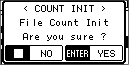
14-5.Accessing the Owner’s Manual page using a 2D code
On its display, this unit can show a 2D code for a URL to a website where the Owner’s Manual is posted.
The document page can be accessed on the website by using a device to read the 2D code.
1.Press the MENU button to open the MENU Screen.
2.Use the + or − button to select the MANUALS item, and press the button.
The DOCUMENT PAGE Screen will open.
3.Use a smartphone or another device to read the 2D code on the display and access the Owner’s Manual for this unit.
4.Press the MENU button to return to the MENU Screen.
NOTE
Please be aware that you are responsible for any transmission costs related to Internet connection.
The following is a list of the pop-up messages.
Refer to this list if one of these pop-up messages appears on the DR-40XP and you want to check the meaning or determine a proper response.
|
Message
|
Details and response
|
|
File Name Err
|
The DIVIDE function would cause the file name to exceed 197 characters.
Connect the unit to a computer or iOS device and edit the file name so that it will be less than 196 characters.
|
|
Dup File Name
|
The DIVIDE function would cause the file name to be the same as that of an existing file in the same folder. The DIVIDE function adds "_a” and “_b” to the ends of the file names. Before dividing the file, connect the unit to a computer or iOS device and change the file name.
|
|
File Not Found
|
The file added to the playlist cannot be found or a file could be damaged. Check the relevant file.
|
|
Non-Supported
|
The audio file is not a supported format. Please see "5-2. Setting the recording format" for file formats that this unit can use.
|
|
Battery Empty
|
The power is insufficient for this unit to operate properly.
The power is also insufficient for this unit to provide phantom power.
Replace with new batteries, or use a TASCAM PS-P520U AC adapter (sold separately).
|
|
I/O Too Short
|
The IN and OUT points are too close together.
Set them with at least 1 second between them.
|
|
File Not Found
PLAYLIST
|
A file in the Playlist cannot be found. Please confirm that the file is still in the Music folder.
|
|
No PLAYLIST
|
No files have been added to the Playlist. Add a file to the playlist or change the AREA to something besides PLAYLIST.
|
|
PLAYLIST FULL
|
The playlist is full. You cannot add more than 99 tracks to the Playlist.
|
|
MBR ERROR
Init CARD
|
The microSD card might not be formatted properly, or it might be broken. Replace the microSD card or press the ENTER/MARK button when this message appears to format the card.
Formatting a microSD card erases all data on it.
|
|
Format Error
Format Card
|
The microSD card might not be formatted properly, or it might be broken. This message appears if a microSD card formatted by a different device or an unformatted card is inserted in the unit.
Always use this unit to format microSD cards to be used with it.
Replace the microSD card or press the ENTER/MARK button when this message appears to format the card.
Formatting a microSD card erases all data on it.
|
|
File Not Found
Make Sys File
|
The system file is missing. When this message appears, press the ENTER/MARK button to automatically create a system file.
|
|
Invalid SysFile
Make Sys File
|
The system file required to operate this unit is invalid. When this message appears, press the ENTER/MARK button to automatically create a new system file.
|
|
Invalid Card
Change Card
|
Something might be wrong with the microSD card.
Replace the microSD card.
|
|
Write error
REC continue
|
Writing to the microSD card timed out. This has caused audio to be interrupted and noise to occur. A mark is added at the point when audio was interrupted.
|
|
Card slow
Check BOF MARK
|
microSD card writing performance has become worse. A mark has been added at the point when audio was interrupted because writing to the microSD card timed out. Check the audio around the BOF mark.
Execute the full format function or replace the microSD card.
|
|
Card Full
|
The microSD card has no open capacity. Erase unnecessary files or move them to a computer or iOS device.
|
|
Can't Divide
|
The selected division point is not suitable. (It is too close to the beginning or end of the track.)
|
|
Max File Size
|
The file is larger than the designated size, or the recording time has exceeded 24 hours when the total number of folders and files was already at the limit (5000). Another possibility is that the recording time exceeded 24 hours when the total number of folders and files was already at the limit (5000).
|
|
File Full
|
The total number of folders and files exceeds 5000. Delete unnecessary files and folders or move them to a computer or iOS device.
|
|
Card Error
|
The microSD card could not be recognized properly. Replace the microSD card.
|
|
Current File
MP3
|
MP3 files cannot be divided.
|
|
File Protected
|
The file is read only and cannot be erased.
|
|
No Card
|
No microSD card is in the unit. Insert a recordable microSD card.
|
|
No PB File
|
There is no file that can be played back. The file might be damaged.
|
|
File Not Found
|
There is no playable file, so file division is not possible.
|
|
Cannot overdub!
See REC setting
|
Overdubbing as not possible when there are two playback files and the format is 96kHz WAV/BWF or MP3.
Mix them down to one file before overdubbing.
|
|
Virtual File !
|
Virtual files cannot be played back or added to the playlist. To play the file back use FILE SWAP.
|
|
Can't File Swap
|
FILE SWAP cannot be used with projects that have only one file.
|
|
Now AUTO REC
|
When auto-recording is enabled, the Self Timer does not function. Set AUTO REC to OFF on the REC SETTING Screen.
|
|
Not Continued
|
If any of these errors occur, turn the unit off and restart it.
If the power cannot be turned off, remove the batteries and disconnect the AC adapter (TASCAM PS-P520U) or the USB cable if used for USB bus power supply.
In addition, reinserting the microSD could resolve some issues.
If these error messages continue to appear frequently, please contact the store where you purchased this unit or TASCAM customer support service.
|
|
File Error
|
|
Can't Save Data
|
|
Player Error
|
|
Device Error
|
|
Writing Failed
|
|
System Err AA
(AA is a number.)
|
If you are having trouble with the operation of this unit, please try the following before seeking repair. If these measures do not solve the problem, please contact the store where you purchased this unit or TASCAM customer support service.
The unit does not turn on
Confirm that the HOLD switch is not set. (3-3. Left side panel)
Confirm that the power supply is set correctly. (4-1. Preparing the power supply)
Confirm that the TASCAM PS-P520U AC adapter power plug and the USB connector are securely connected. The unit might not operate properly through a USB hub.
The unit turns off automatically
Check the automatic power saving function setting. (The default value is 30 minutes.)
Set it to “OFF” to prevent the power from turning off automatically. (Setting the automatic power saving function)
The microSD card is not recognized
Check that the microSD card is inserted with the correct orientation. (4-5. Inserting and removing microSD cards)
Formatting it with a computer before inserting it might make it recognizable.
In this case, this unit will show a “Format Error” message. Then, however, formatting it with this unit should make it usable. (4-6. Preparing microSD cards for use)
Check that the microSD card is on the list of media confirmed for operation. (Using microSD cards)
Check the capacity of the microSD card. (The maximum supported size is 512 GB.)
No sound is output or sound is not output from the playback monitoring speaker
Confirm that the output volume is not lowered too much. (7-3. Adjusting the playback volume)
The built in playback monitoring speaker only outputs sound during playback. Even during playback, it will not output sound in the following cases.
When the built-in speaker for playback monitoring is set to off (4-7. Checking recorded sounds using the speaker for playback monitoring)
Headphones are connected
When in overdubbing mode(Overdub recording modes)
When the level of the recorded sound is extremely low
The volume of the playback monitoring speaker is low
Confirm that the output volume is not lowered too much. (7-3. Adjusting the playback volume)
The built in playback monitoring speaker is for checking recorded audio. We recommend using headphones for extensive listening. (4-8. Connecting headphones)
Recording is not possible
Install a microSD card. This unit uses microSD cards for recording. (4-5. Inserting and removing microSD cards)
Confirm that the REC indicator is lit. If the REC indicator is blinking, recording is paused.
Check the remaining available recording time shown on the recording screen. (3-6. Recording Screen)
The recorded sound is quiet or distorted
Check input level settings. (5-5. Adjusting the input level)
Playback sounds distorted even though 32-bit float recording was used
If the level exceeds 0 dB during playback, use editing software on a computer or iOS device to adjust it.
If the PEAK indicator lights during recording, the signal will be recorded with distortion even if the input level is lowered. Increase the distance from the sound source or reduce the volume of the external device.
The unit is not recognized by a computer or iOS device connected using a USB cable
Confirm that the connected computer or iOS device uses a compatible operating system. (17-4. Operating system and other requirements)
The USB function used must be selected from the menu to enable a computer or iOS device to recognize this unit. (13. USB connection)
Confirm that the USB cable is not designed only for charging. (USB cables)
Confirm that the connection is not being made through a USB hub.
Sound skips or noise occurs when in USB audio interface mode
For Windows
Performance options
Select “Adjust for best performance”.
Power options
Select “High performance”.
Use an ASIO driver for the DR-X series.
Check the page for this product on the TASCAM website for details.
https://tascam.jp/int/product/dr-40xp/support
The wrong language was set accidentally
After pressing the [] button to turn the unit off, while pressing the MENU button, press the [] button again.
The language selection menu will appear, and you will be able to select the language.
17-1.Supported formats
Recording media
microSD cards
microSDHC cards
microSDXC cards (512 GB maximum)
Recording/playback format
WAV
Sampling frequency
44.1/48/96 kHz
Quantization bit depth
16-bit/24-bit/32-bit float
MP3
Sampling frequency
44.1/48 kHz
Bit rate
32/64/96/128/192/256/320 kbps
Number of channels
Input channels
4 (2 stereo)
Recording tracks
4
17-2.Input/output ratings
Analog audio input/output ratings
EXT MIC/LINE IN jacks (only XLR connectors can provide phantom power)
Connectors
XLR-3-31 equivalent (1: GND, 2: HOT, 3: COLD)
6.3 mm (1/4”) TRS Standard jack
(Tip: HOT, Ring: COLD, Sleeve: GND)
When EXT IN switch set to MIC or MIC+PHANTOM
Input impedance: 2.4 kΩ or more
Minimum input level: −82 dBu
Maximum input level: +7 dBu
Phantom power: +24V or +48V (XLR input only)
When EXT IN switch set to LINE
Input impedance: 10 kΩ or higher
Nominal input level: +4 dBu
Maximum input level: +24 dBu
/LINE OUT jack
Connector
3.5 mm (1/8”) stereo mini jack
Output impedance
2.2 Ω
Nominal output level
−20 dBV (with 10 kΩ load)
Maximum output level
+0 dBV (with 10 kΩ load)
Maximum output
20 mW + 20mW (32 Ω load)
Recommended headphone impedance
16–600 Ω (Sufficient volume might not be achieved from low-sensitivity headphones even if in the recommended range.)
Speaker for playback monitoring (monaural)
0.3 W
Note: 0 dBV = 1 Vrms, 0 dBu = 0.775 Vrms
Control input/output ratings
USB
Connector
Type-C
Format
USB 2.0 HIGH SPEED mass storage class
USB1.1 FULL SPEED audio class
USB Audio
Sampling frequency
44.1/48 kHz
Quantization bit depth
24-bit
Number of inputs
2 channels
Number of outputs
2 channels
Audio drivers
Windows: ASIO 2.0, WDM
Note: To use ASIO 2.0, the ASIO driver shared by the TASCAM DR-X Series (DR-X Series and DR-XP Series) must be installed.
macOS, iOS/iPadOS: Core Audio
17-3.Audio performance
Frequency response
20 Hz – 20 kHz +0/−1 dB
(EXT MIC IN to PCM data, Fs 44.1 kHz, JEITA)
20 Hz – 22 kHz +0/−1 dB
(EXT MIC IN to PCM data, Fs 48 kHz, JEITA)
20 Hz – 40 kHz +0/−1 dB
(EXT MIC IN to PCM data, Fs 96 kHz, JEITA)
Total harmonic distortion ratio (THD+N)
0.008% or lower
(EXT MIC IN, −5dBFS input, 20kHz LPF, JEITA)
Dynamic range
EXT MIC IN to PCM data (20kHz LPF, A-weighted, JEITA)
112 dB or higher
EIN (equivalent input noise)
−126 dBu or lower
(EXT MIC IN to PCM data)
Note: JEITA indicates conformance to JEITA CP-2150
17-4.Operating system and other requirements
Check the TASCAM website for the latest information about supported operating systems.
https://tascam.jp/int/product/dr-40xp/support#Compatible_OS
NOTE
Operation with each OS was confirmed with standard system setups that met the following conditions.
Operation is not guaranteed, however, with all systems that meet the following conditions.
Supported operating systems
DR-40XP audio interface
Windows*, macOS, iOS/iPadOS
Compatibility has been confirmed, but this does not guarantee operation with all devices.
* Operation is not guaranteed using the TASCAM driver with ARM64 CPUs.
Note: Since support on Android OS depends on the smartphone maker, operation could be different according to the device model.
We have confirmed basic operation (2ch/48kHz) under certain conditions with the models in the following document.
“Confirmation status of TASCAM product audio interface functions with Android OS”
Download this file from the following URL.
https://tascam.jp/int/product/dr-40xp/support#Compatible_OS
17-5.Other
Power
3 AA batteries (alkaline, NiMH or lithium-ion, sold separately)
5V/0.5A USB bus power from a computer (USB cable sold separately)
TASCAM PS-P520U AC adapter (DC 5V/2A, sold separately)
Power consumption
1.7 W (maximum)
Current consumption
0.34 A (maximum)
Battery operation time (continuous operation)
Using alkaline batteries (EVOLTA)
|
Format
|
Operation time
|
Note
|
|
2-ch WAV,
44.1 kHz,
16-bit recording
|
About 18 hours
|
Built-in stereo mic input
|
|
2-ch WAV,
44.1 kHz,
32-bit float recording
|
About 16.5 hours
|
Built-in stereo mic input
|
|
2-ch MP3,
44.1 kHz,
128 kbps recording
|
About 16 hours
|
Built-in stereo mic input
|
|
4-ch WAV,
96 kHz,
32-bit float recording
|
About 5 hours
|
Phantom power supplied (+48V, 3mA load × 2) and headphones used
|
|
2-ch WAV,
44.1 kHz,
16-bit playback
|
About 20.5 hours
|
Using headphones
|
Recording: JEITA recording time
Playback: JEITA music playback time
Using Ni-MH batteries (eneloop)
|
Format
|
Operation time
|
Note
|
|
2-ch WAV,
44.1 kHz,
16-bit recording
|
About 16 hours
|
Built-in stereo mic input
|
|
2-ch WAV,
44.1 kHz,
32-bit float recording
|
About 16 hours
|
Built-in stereo mic input
|
|
2-ch MP3,
44.1 kHz,
128 kbps recording
|
About 13 hours
|
Built-in stereo mic input
|
|
4-ch WAV,
96 kHz,
32-bit float recording
|
About 5 hours
|
Phantom power supplied (+48V, 3mA load × 2) and headphones used
|
|
2-ch WAV,
44.1 kHz,
16-bit playback
|
About 16 hours
|
Using headphones
|
Recording: JEITA recording time
Playback: JEITA music playback time
Using lithium batteries (Energizer)
|
Format
|
Operation time
|
Note
|
|
2-ch WAV,
44.1 kHz,
16-bit recording
|
About 29.5 hours
|
Built-in stereo mic input
|
|
2-ch WAV,
44.1 kHz,
32-bit float recording
|
About 25.5 hours
|
Built-in stereo mic input
|
|
2-ch MP3,
44.1 kHz,
128 kbps recording
|
About 24.5 hours
|
Built-in stereo mic input
|
|
4-ch WAV,
96 kHz,
32-bit float recording
|
About 10 hours
|
Phantom power supplied (+48V, 3mA load × 2) and headphones used
|
|
2-ch WAV,
44.1 kHz,
16-bit playback
|
About 30.5 hours
|
Using headphones
|
Recording: JEITA recording time
Playback: JEITA music playback time
NOTE
The battery operation times (during continuous operation) could vary depending on the media being used.
Dimensions
70 × 155 × 35 mm (w × h × d when mic pair closed)
90 × 155 × 35 mm (w × h × d when mic pair open)
Weight
282/213 g (with/without batteries)
Operating temperature range
0–40ºC
17-6.Dimensional drawings
|
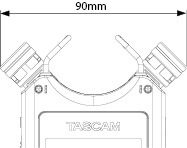
|
|
Dimension of the microphone opened
|
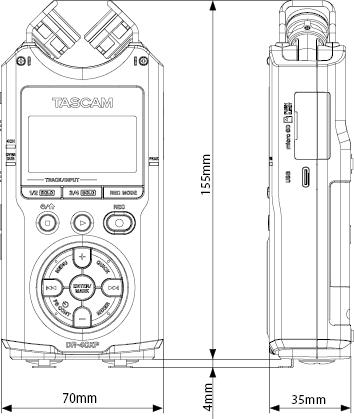
Illustrations in this manual might differ in part from the actual product.
Specifications and external appearance might be changed without notification to improve the product.
TASCAM is a registered trademark of TEAC Corporation.
The microSDXC logo is a trademark of SD-3C, LLC.
MPEG Layer-3 audio coding technology licensed from Fraunhofer IIS and Thomson.
Microsoft and Windows are either registered trademarks or trademarks of Microsoft Corporation in the United States and/or other countries.
Apple, Mac, macOS, iOS, iPad, iPadOS and iTunes are trademarks of Apple Inc. in the United States and other countries.
Lightning is a trademark of Apple Inc.
IOS is a trademark or registered trademark of Cisco in the U.S. and other countries and is used under license.
Android and Google are trademarks of Google LLC.
ASIO is a trademark of Steinberg Media Technologies GmbH.
Other company names, product names and logos in this document are the trademarks or registered trademarks of their respective owners.